
Blind Transcription
Due to the subjective nature of phonetic transcription, Phon provides a built-in system for performing multiple-blind transcriptions. In a multiple-blind transcription process, records are transcribed independently by separate users who do not see each other's work. These separate transcriptions are then resolved by a validator, who can select one transcription, combine them, or create a consensus.
Blind Tiers
In Phon, blind transcription operates at the tier level. Most tiers can participate in blind transcription, including Orthography, IPA Target, IPA Actual, Notes, and any user-defined tiers.
To mark a tier as blind, use the Blind checkbox on the tier card in the Tier Management view. When enabling blind mode for a tier, Phon offers to copy the existing validated values into a transcriber's blind transcription. This allows a transcriber to start from the existing data rather than a blank field.
Opening a Session as Transcriber
To open a session for blind transcription:
-
In the Project Manager or Project Tree window, select the Blind transcription checkbox.
-
Double-click the session you wish to transcribe, or select Open session as transcriber... from the context menu.
A dialog will prompt you to identify yourself as a new or existing transcriber. -
The transcriber selection dialog offers two options:
- New Transcriber — Enter a username (required) and optionally a full name. Check Use password to set a password.
- Existing Transcriber — Select from a combined list of session and project-level transcribers. Each entry shows the source (session or project). Project transcribers are added to the session automatically when selected.
Click OK to open the session. The Session Editor title bar shows your transcriber name.
In the Project Tree view, if the session or project already has transcribers, a popup menu lists them. Session transcribers appear first, followed by project-level transcribers labeled (project). An Add new transcriber... option is always available at the bottom. Selecting an existing session transcriber opens the session directly (prompting for a password if required), without showing the full transcriber selection dialog.
Transcriber Workflow
When editing a session as a blind transcriber, the following behaviors apply:
- Blind tiers — For tiers marked as blind, your edits are stored separately as your blind transcription. Other transcribers' work and the validated (consensus) value are not visible to you.
- Italicized content — If you have not yet entered a blind transcription for a tier, the existing validated content is displayed in italics. This indicates the text shown is from the consensus data, not your own work. Once you edit the tier, your transcription replaces the italicized text.
- Non-blind tiers — Tiers not marked as blind display the validated value and can be edited normally. However, if you edit a non-blind tier, Phon automatically promotes that tier to blind mode with a confirmation dialog.
Automatic Tier Promotion
When a blind transcriber edits a tier that is not currently blind, Phon displays a dialog informing you that the tier will become blind for all users. After confirmation, the tier is promoted to blind mode. The existing validated content remains visible in italics until you enter your own transcription.
This automatic promotion ensures that any tier a transcriber works on participates in the blind transcription process, preserving the integrity of the multi-blind workflow.
Validator Workflow
To review and resolve blind transcriptions, open the session normally (without blind mode). You are working as the validator, with access to the consensus values.
Validation Mode
Enable validation mode to see all blind transcriptions inline in the transcript:
-
Open the transcript view's options menu (accessible from the Transcript panel menu).
-
Select Enable validation mode.
Below each blind tier in every record, additional lines appear showing each transcriber's blind transcription with a Select button.
In validation mode:
- Each blind transcription line shows the transcriber's name and their transcription text.
- Click Select next to a transcription to adopt it as the validated (consensus) value for that tier and record.
- Blind transcription lines are read-only. To enter a different consensus value, edit the main tier line directly.
To exit validation mode, select Disable validation mode from the same menu.
Resolving Transcriptions
A typical validation workflow proceeds as follows:
- Open the session normally (as validator).
- Enable validation mode in the transcript view.
- For each record, review the blind transcriptions displayed below each blind tier.
- For each tier, do one of the following:
- Click Select on the best transcription to adopt it as the consensus.
- Edit the main tier value directly to create a consensus that combines elements from multiple transcriptions.
- Enter an entirely new transcription if both blind transcriptions are in error.
- Save the session when validation is complete.
Inter-Transcriber Agreement
After blind transcriptions have been completed, you can measure agreement between transcribers using the inter-transcriber reliability report. This report provides metrics including Levenshtein distance, phone agreement, consonant agreement, vowel agreement, and diacritic agreement.
The inter-transcriber reliability report is available from the menu when the session has two or more transcribers.
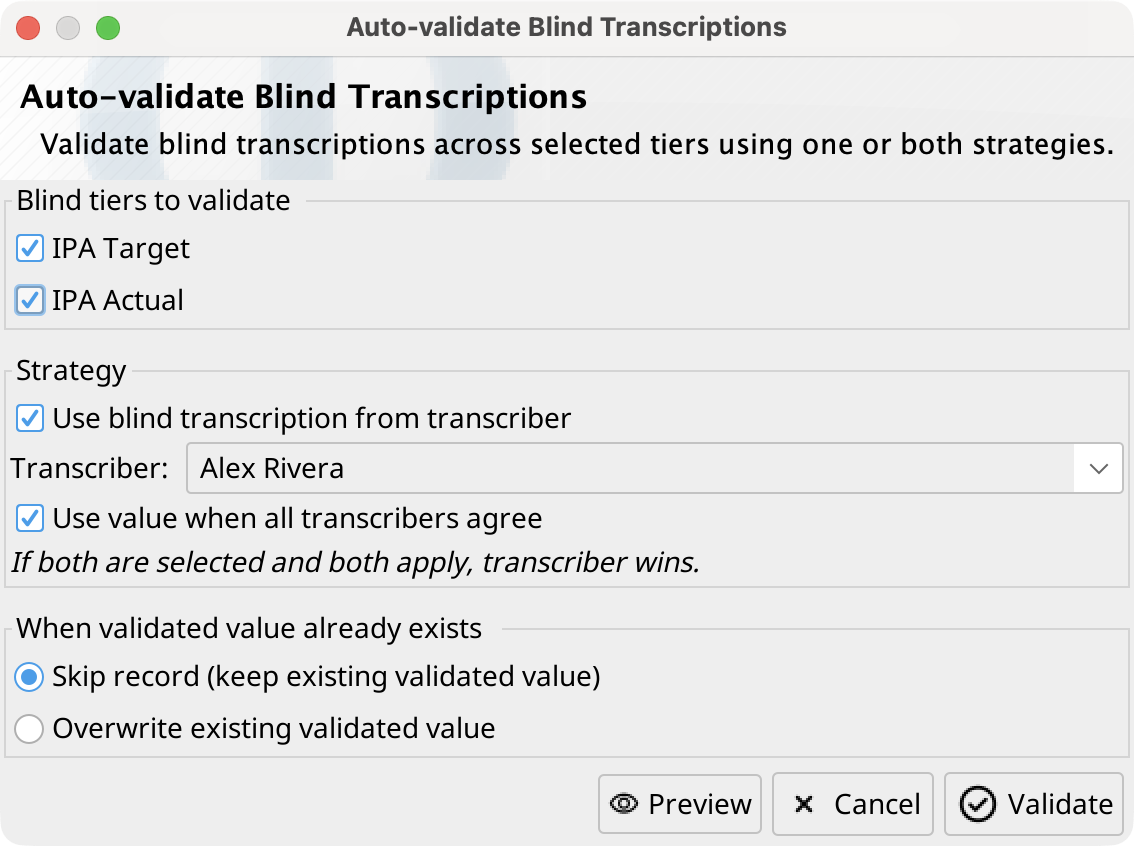
Automatically validate blind transcriptions
As validator, select Auto-validate blind transcriptions... from the Transcript records menu or a blind tier's label menu. Select one or more blind tiers and either or both validation strategies:
- Use blind transcription from transcriber promotes the selected transcriber's value.
- Use value when all transcribers agree promotes a common value only when at least two transcribers entered identical values.
If both strategies apply, the selected transcriber's value takes precedence. Choose whether to skip records that already have a validated value or overwrite that value. Preview reports how many records will be changed per tier before Validate applies the undoable operation.
Project Transcribers
Phon maintains a project-level list of transcribers, separate from the per-session transcriber lists. When a session is saved, its transcribers are automatically merged into the project-level list. This allows transcribers to be reused across sessions without re-entering their details.
Project transcribers appear in:
- The Existing Transcriber combo box in the transcriber selection dialog, labeled with their source (session or project).
- The popup menu when opening a session in blind mode from the Project Tree, listed below session transcribers with a (project) label.
- The right-click context menu under Open as transcriber (blind mode).
To manage project-level transcribers (view or remove), use the Project Participants & Transcribers cleanup dialog accessible from the Project Tree context menu.