
Welcome Window
The Welcome window provides shortcuts for creating and opening projects. It also lists folders in the current workspace and projects opened recently.
The window preserves its size, position, search text, sort selection, and scroll positions while Phon is running. Closing it hides the window when another Phon window is open. Use the Window menu to show it again.
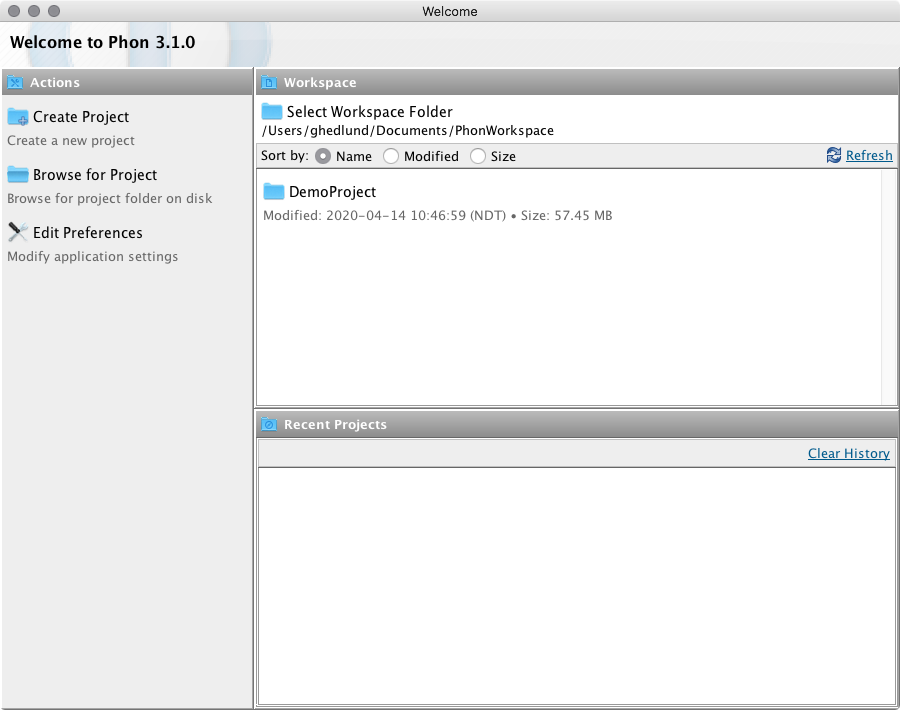
Actions
The Actions pane provides these shortcuts:
- Create Project — Choose a location and enter a name for a new project. Phon creates and opens the project. A project cannot be created at an existing path or inside another project.
- Browse for Project — Select a project folder on disk and open it.
- Edit Preferences — Open the application preferences. See Preferences.
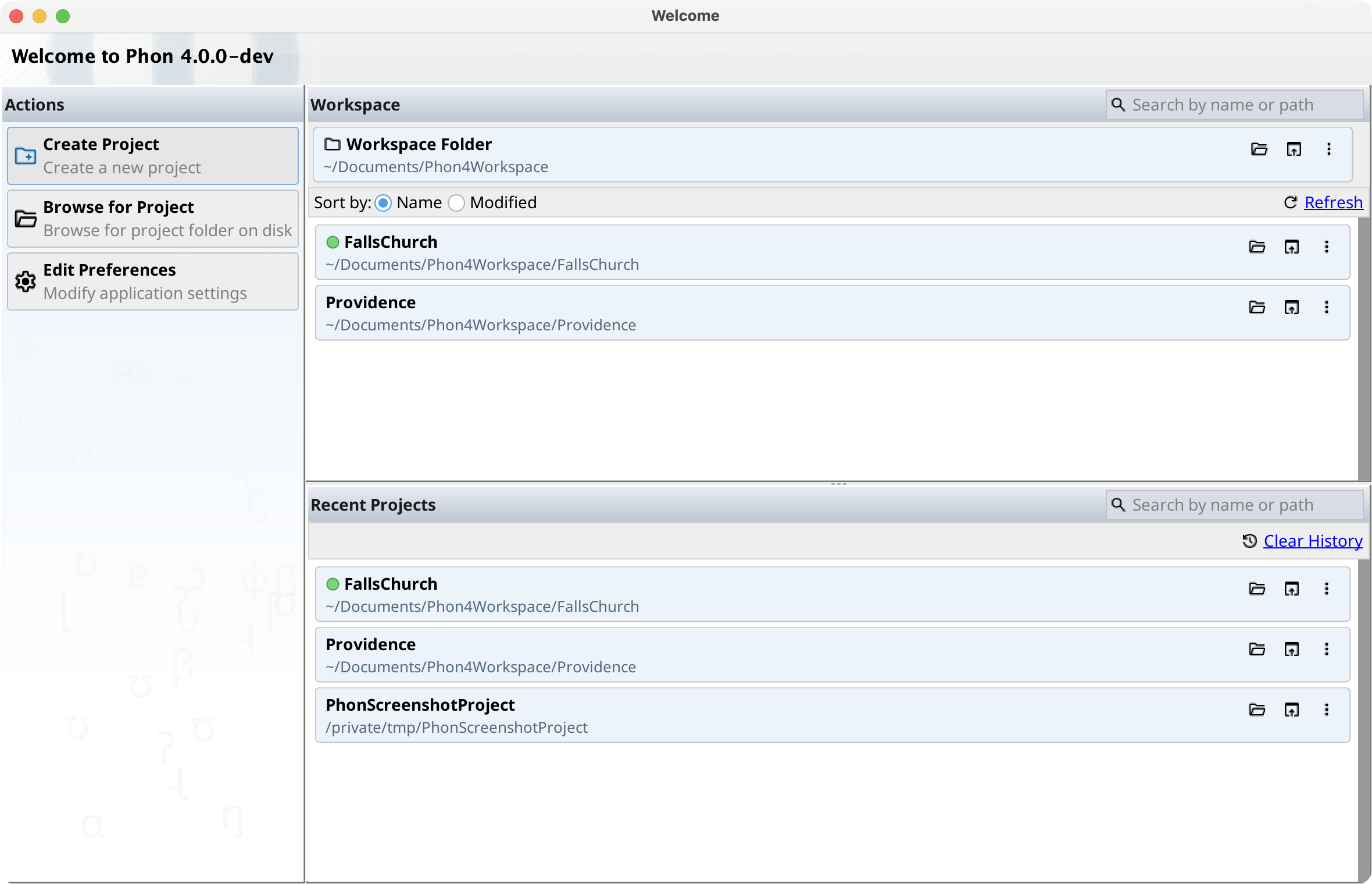
Workspace
The workspace is the default location for new projects. Unless you select another folder, Phon uses <user-home>/Documents/Phon4Workspace.
The workspace card displays the current folder and provides these controls:
- Change workspace folder — Select another existing folder.
- Show in Finder, Show in File Explorer, or Show in file browser — Open the workspace in the operating system's file browser.
- More actions — Select a previously used workspace, remove entries from the workspace history, clear the history, or browse for a folder. Double-clicking the workspace card also opens this menu.
If a workspace from the history no longer exists, the menu offers Create workspace folder for that location.
Workspace Projects
The workspace list shows project folders directly inside the current workspace. Type in the search field to filter cards by project name or path. Select Name or Modified to change the sort order, and select Refresh after making changes outside Phon.
Double-click a card or select Open project to open it. Each card also provides a file-browser button and a More actions menu.
Project Card Actions
The More actions menu on a workspace-project card includes:
- Open project — Open the project in a project window.
- Show in Finder, Show in File Explorer, or Show in file browser — Reveal the project folder.
- Copy path — Copy the absolute project-folder path to the clipboard.
- Rename project… — Rename both the project folder and the project's stored name. Close the project window before renaming. Phon rejects an invalid name or a name already used by another folder.
- Zip project… — Create a dated ZIP archive in the backups folder inside the current workspace.
- Delete project… — After confirmation, move the project folder to the system Trash or Recycle Bin. If the desktop does not support moving files to trash, Phon leaves the folder in place and tells you to delete it manually.
On macOS, the menu also includes Tag for assigning or removing a Finder color tag.
Recent Projects
The Recent Projects pane lists projects opened previously. Search by project name or path, double-click a card to open it, or use the card's open and file-browser buttons.
The More actions menu lets you open the project, reveal its folder, copy its path, or select Remove from list. Removing an entry from the list does not delete the project. On macOS, the menu also includes Finder tags.
A dimmed card with a warning icon indicates that the project folder cannot be found. Its open action is disabled. Select Remove missing to remove every missing entry, or Clear History to remove all recent-project entries.