Query and Report Wizard
The Query and Report wizard runs a selected query script, retains multiple executions in the same window, composes a report from the selected results, and generates an HTML report. Open a stock, user, or project query from the Query menu or Project Tree.
Run a query
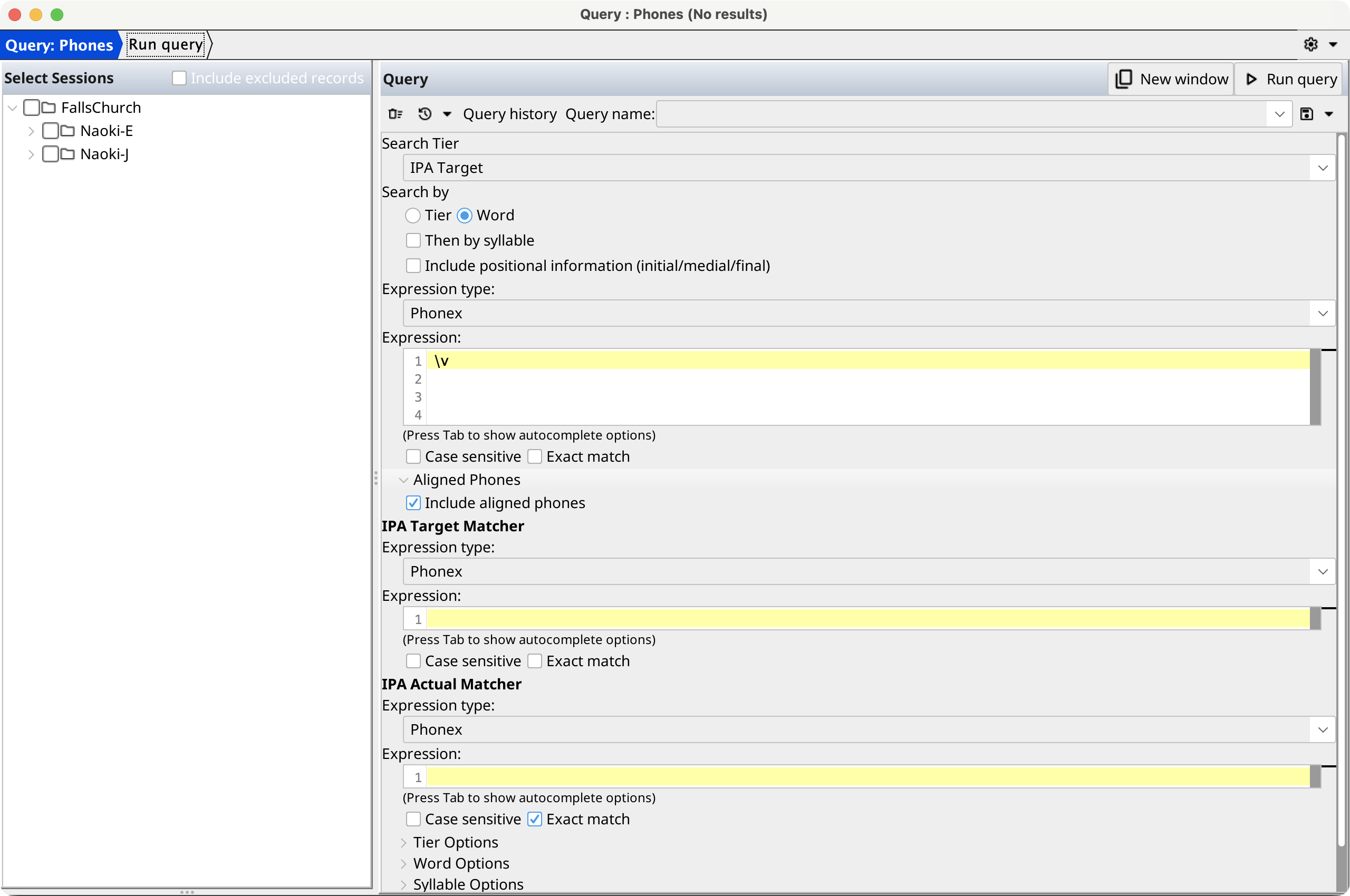
On the first page, check one or more sessions in Select Sessions and complete the query-specific parameter form. Enable Include excluded records when records marked excluded in their sessions should also be searched. Select Run query or press F7. A running query can be stopped.
Each execution appears in Query Results. Use the selector in its title bar or to switch executions; use the remove button to discard the selected execution. Completed result sets are also attached below their sessions in the selector. Double-click one to open the Result Set Editor.
The toolbar above the query parameters moves through query history and identifies named settings. The Query menu can clear the form, save the current settings as a named history entry or query resource, load stock queries, open another window, and discard results. Completed executions are added to history automatically.
Compose the report
After a query completes, select Next to open the Report Composer. The composer is an ordered table of report components. Add stock, user, or project report sections; select a row to configure its settings; and duplicate, rename, remove, drag, or use the arrow buttons to reorder sections.
The save menu writes the report configuration to a project, user library, or chosen file. The folder button opens another configuration. For details about the same composer in its standalone window, see Report Composer.
Generate and export the report
Select Next to run the report graph against the selected query execution. The final page displays the generated report and processing messages.
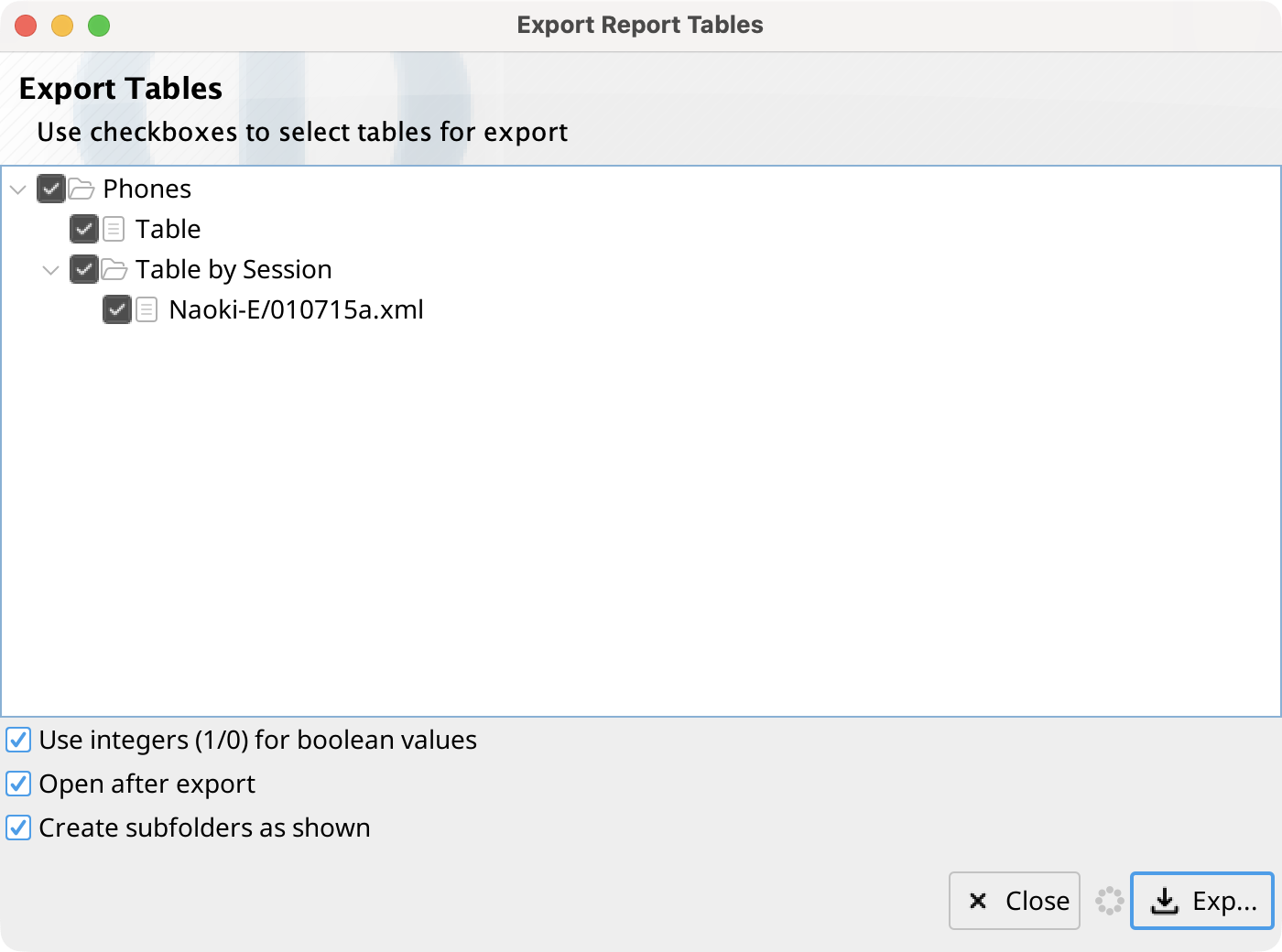
Use the report buffer toolbar or context menu to save the HTML report, copy content, or export report tables. Table export can create a spreadsheet or write individual CSV files to a selected folder.