
Result Set Editor
Double-click a completed result set below a session in the Query and Report wizard. Phon opens the corresponding Session Editor when necessary and positions the Result Set Editor beside it. Selecting a result moves the session to that record and highlights the matched transcript content.
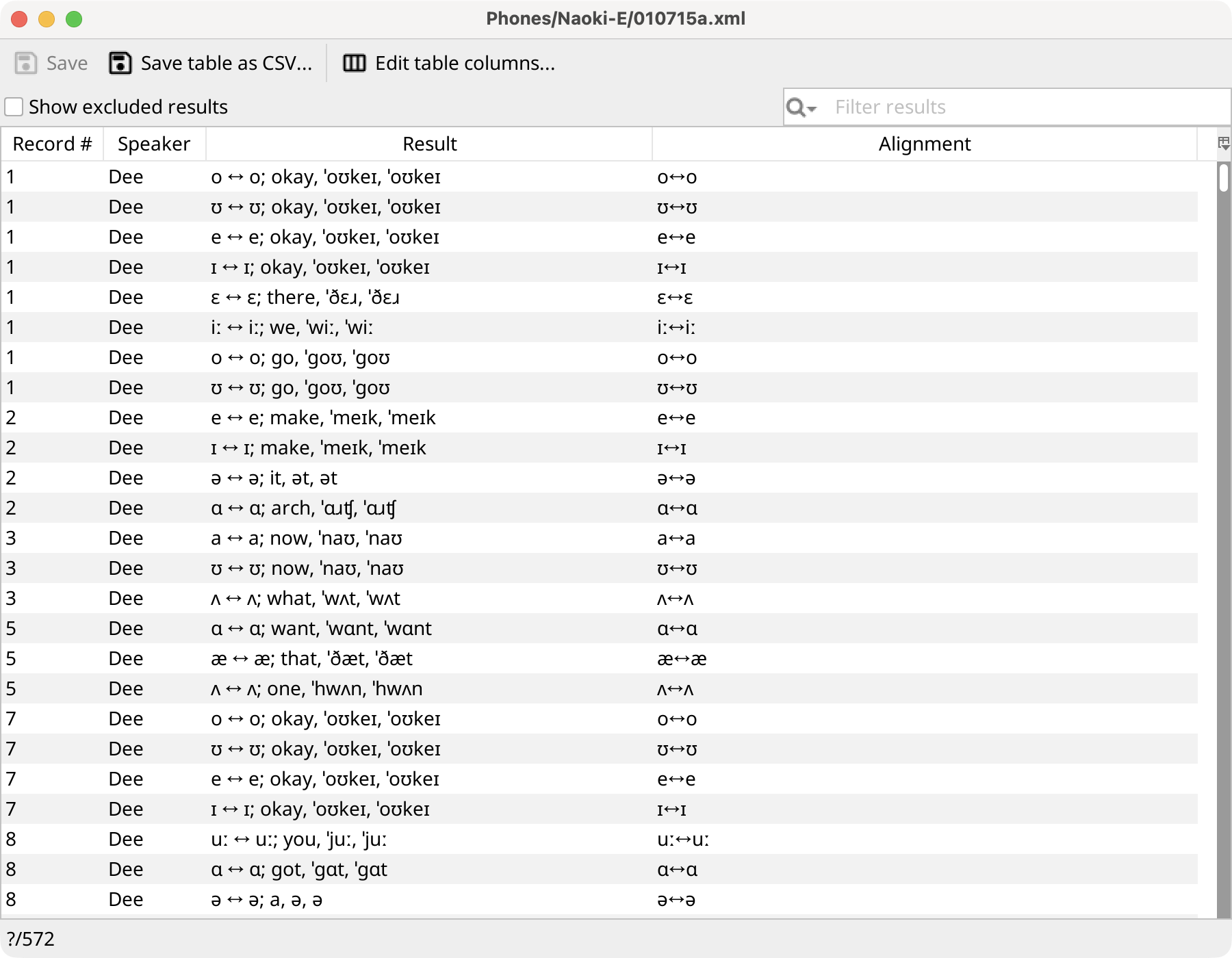
Click a column header to sort, drag headers to reorder them, or use the column-control button at the right of the header row. The status bar reports the selected row, visible row count, and how many results are hidden.
Filter and exclude results
Use the search field above the table to filter visible rows. Its menu chooses searched columns and regular-expression or case-sensitive matching. This display filter does not change the stored results.
Select one or more rows and choose , or press Delete/Backspace, to change their excluded state. Enable Show excluded results to display excluded rows in italic gray text. Select Save to persist exclusion changes.
Configure columns and export
Select Edit table columns... to add standard or custom result fields, remove fields, rename their headings, change field options, and reorder the table. Selecting OK applies and saves that listing for this result set.
Select Save table as CSV... to write the table exactly as it is currently displayed. Rows hidden by search or excluded-results filtering are not in that displayed table; excluded rows that are shown are included.