
Session Editor
The Session Editor is the main window for viewing and editing a session. The central Transcript displays session headers and transcript elements; dockable views provide participant, tier, media, transcription, search, and validation tools.
Opening a session that is already open brings its existing editor window to the front. Additional sessions open in separate windows.
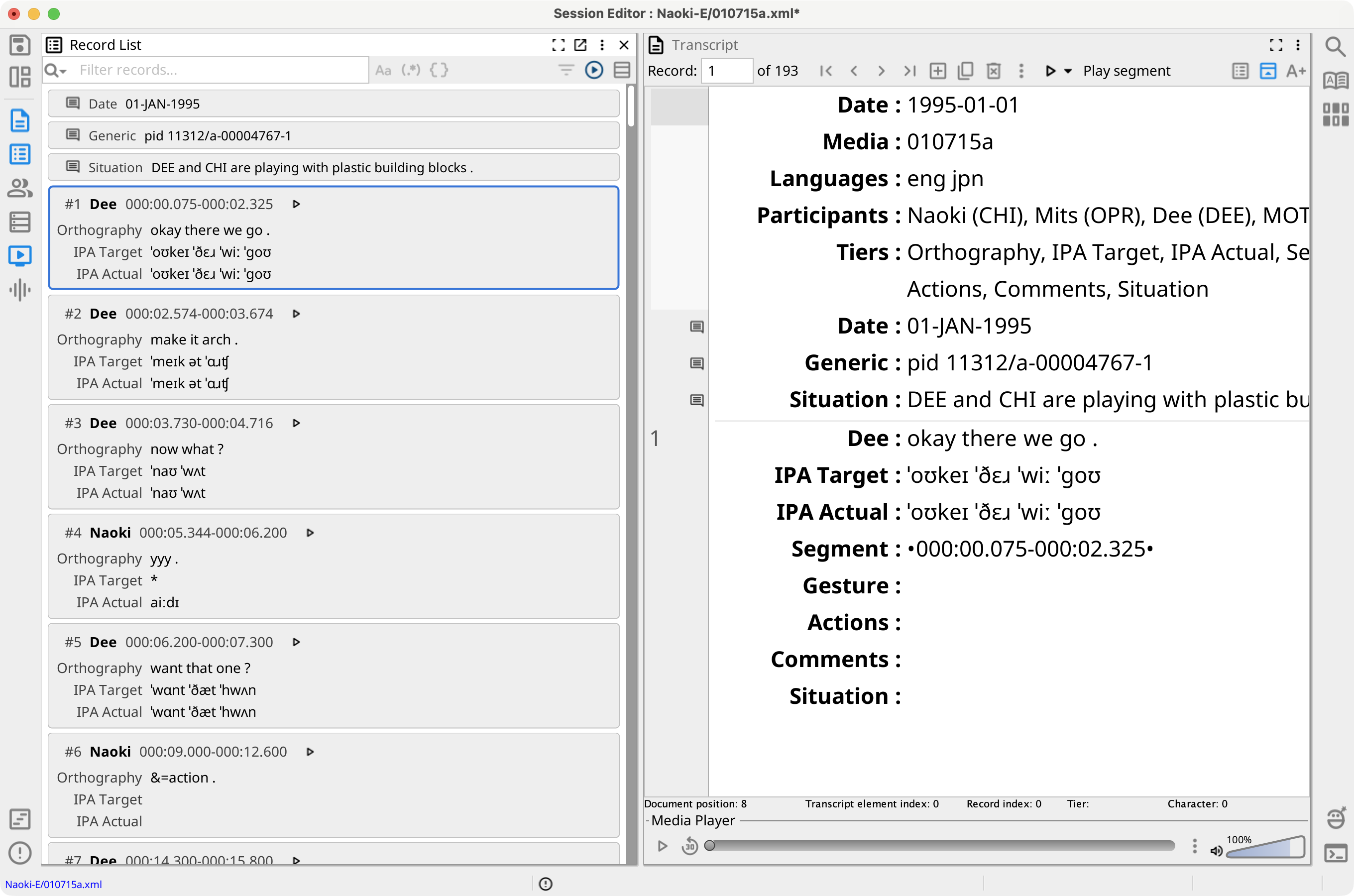
Window Layout
The window contains the following areas:
- View strips — Vertical strips on the left and right provide the Save and layout controls and buttons for editor views. Select a view button to show or focus that view. See Editor Views.
- Dock area — The Transcript and other open views can be resized, moved, minimized, maximized, or detached into accessory windows.
- Window status bar — The footer shows the session path, Session Check error and warning counts, and progress for media loading or other background work.
Select the session path in the footer to reveal the session file in the operating system's file manager. Select an error or warning count to open the Session Check view.
Use the layout button in the left strip or the View menu to reset, load, save, or delete layouts. See Editor Layouts.
Session Editor Menus
In addition to the application menus, the Session Editor provides:
- File — Save the session, save it in an available session format, or export the transcript as HTML.
- Session — Create, duplicate, delete, move, sort, cut, copy, paste, and navigate records. When a session contains blind transcriptions, this menu also provides inter-transcriber reliability.
- View — Manage editor layouts and show available views.
- Media — Assign or unassign media, generate session audio, inspect media information, set volume and playback rate, play or export segments, and edit media folders.
The Edit menu also provides Find and Find and Replace for the Transcript. See Find and Replace in the Transcript.
Transcript Status Bar
The status bar directly below the Transcript reports the caret's document position, transcript-element index, record index, tier, and character offset. It is separate from the Session Editor window status bar.