Preferences
Open application preferences with , or select Edit Preferences in the Welcome window.
Preference controls save their values when changed. Select OK to close the window. Installed plug-ins can add tabs beyond those listed here.
General
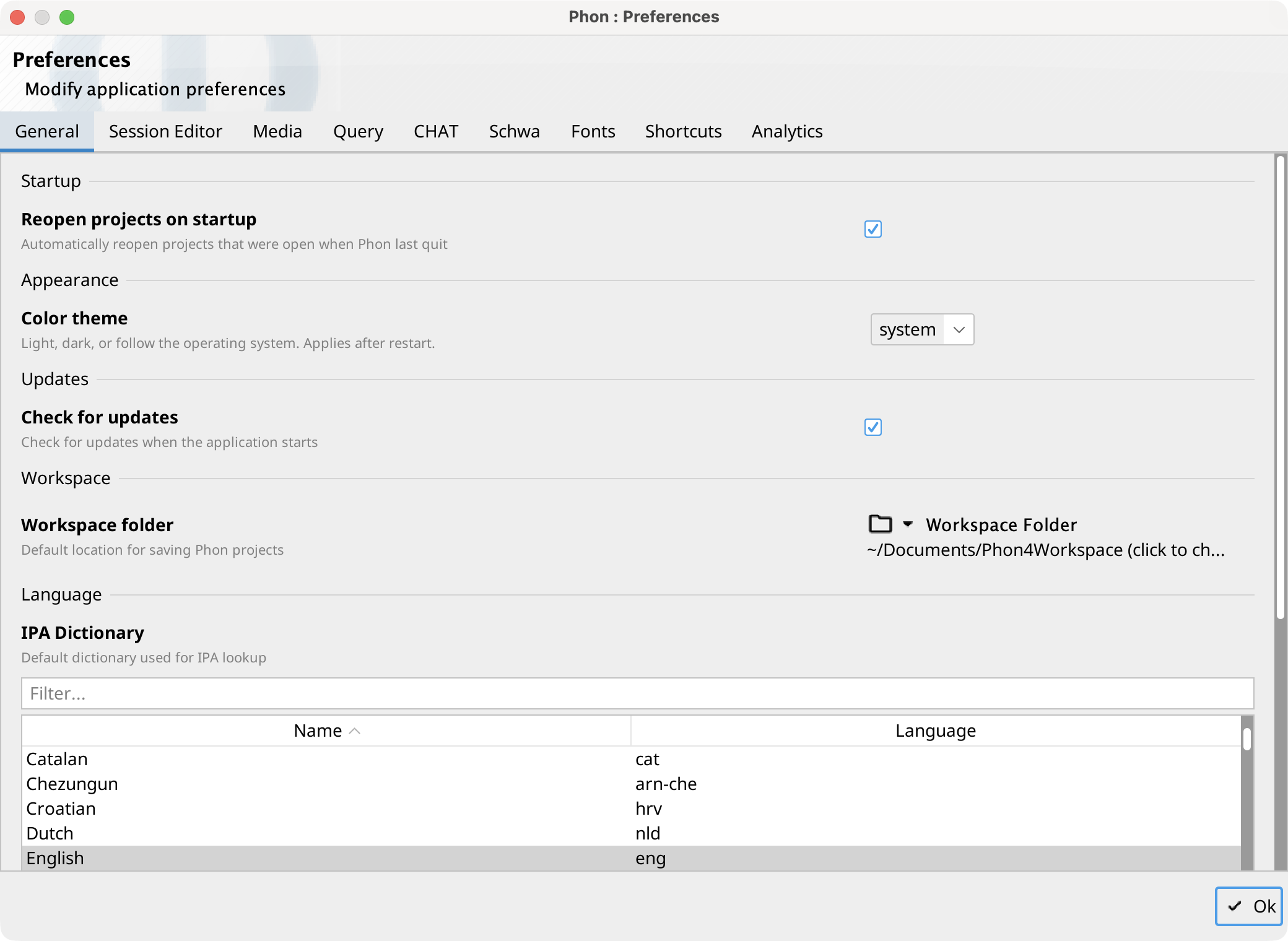
The General tab contains:
- Reopen projects on startup — Reopen projects that were still open when Phon last quit. Enabled by default.
- Color theme — Follow the operating system or use the light or dark theme. Restart Phon after changing the theme.
- Check for updates — Check for application updates at startup. Enabled by default.
- Workspace folder — Select the default location for Phon projects. See Workspace.
- IPA Dictionary — Select the default dictionary used for IPA lookup. Filter the table by dictionary name or language.
- Syllabifier — Select the default syllabifier. Filter the table by name or language.
- Reset information messages — Restore information panels that were hidden with their close controls.
Session Editor
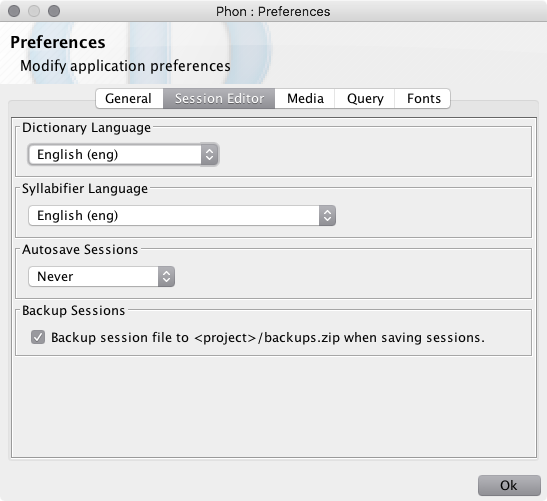
The Session Editor tab controls saving, media checks, and the layout loaded when a session opens:
- Autosave interval — Choose Never or an interval from 5 to 30 minutes. Autosaving is off by default.
- Backup when saving — Store a session backup in the project's backups.zip before saving. Enabled by default.
- Max backups per session — Limit retained backups from 1
to 100, or enter
0for no limit. The default is 20. - Check audio files — Validate an audio file before loading it. Disable this only when validation itself prevents a usable file from loading.
- Layout on open — Load the layout of the last-used editor, the layout previously used for this session, or the default layout.
Media
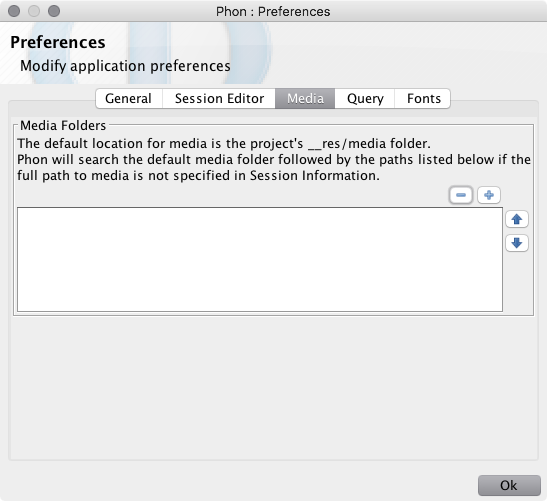
The Media tab maintains global media search paths. When a session does not specify a usable absolute media path, Phon searches the project and corpus locations first, then these global folders in list order.
Use the buttons beside the list to add or remove a folder and move a selected folder up or down. These global paths apply to every project. Project-specific media folders are managed from a project window.
Query
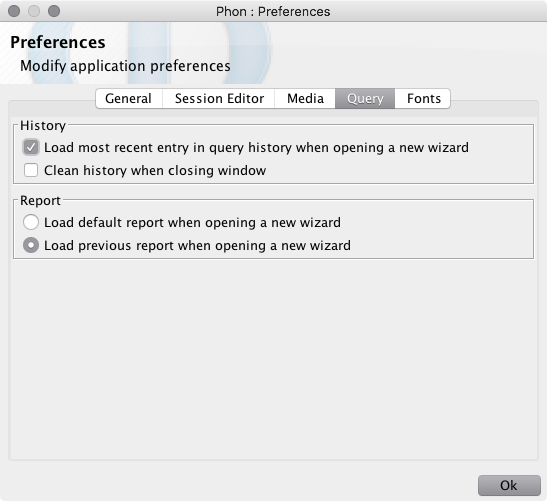
The Query tab controls how a new Query and Report window is initialized:
- Load previous query parameters — Load the most recent history entry when a new query window opens. Enabled by default.
- Clean history on close — Remove query-history entries when the query window closes. Disabled by default.
- Report on open — Load either the default report or the previously used report configuration.
CHAT
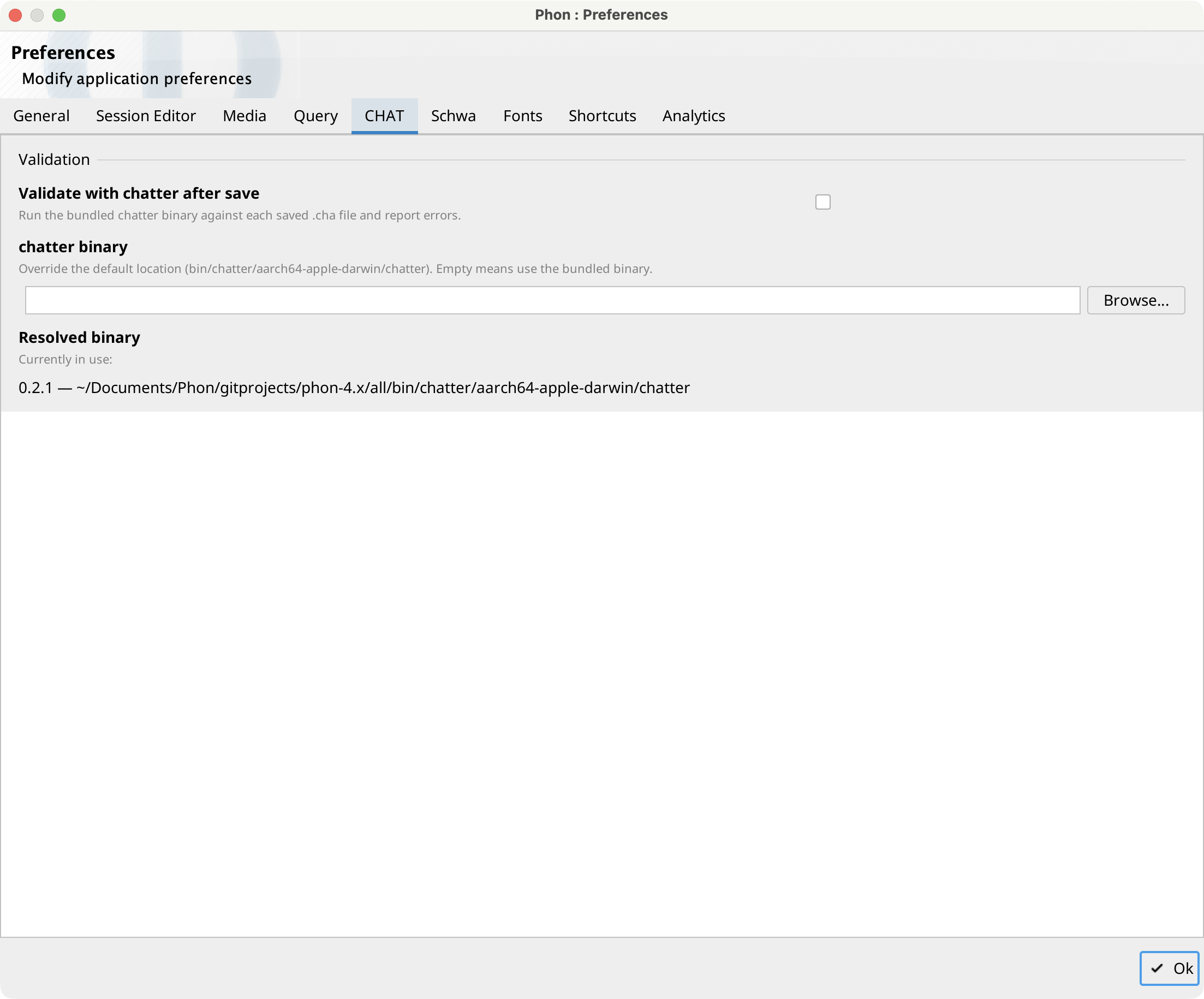
The CHAT tab configures optional validation of saved .cha files:
- Validate with chatter after save — Run
chatteron each saved CHAT file and report errors. This is off by default and is available only on supported macOS and Windows builds. - chatter binary — Override the bundled executable with an absolute path. Leave the field empty to use the bundled location.
- Resolved binary — Shows the executable and, when it can be detected, its version. Validation is skipped when no executable is found.
Analytics
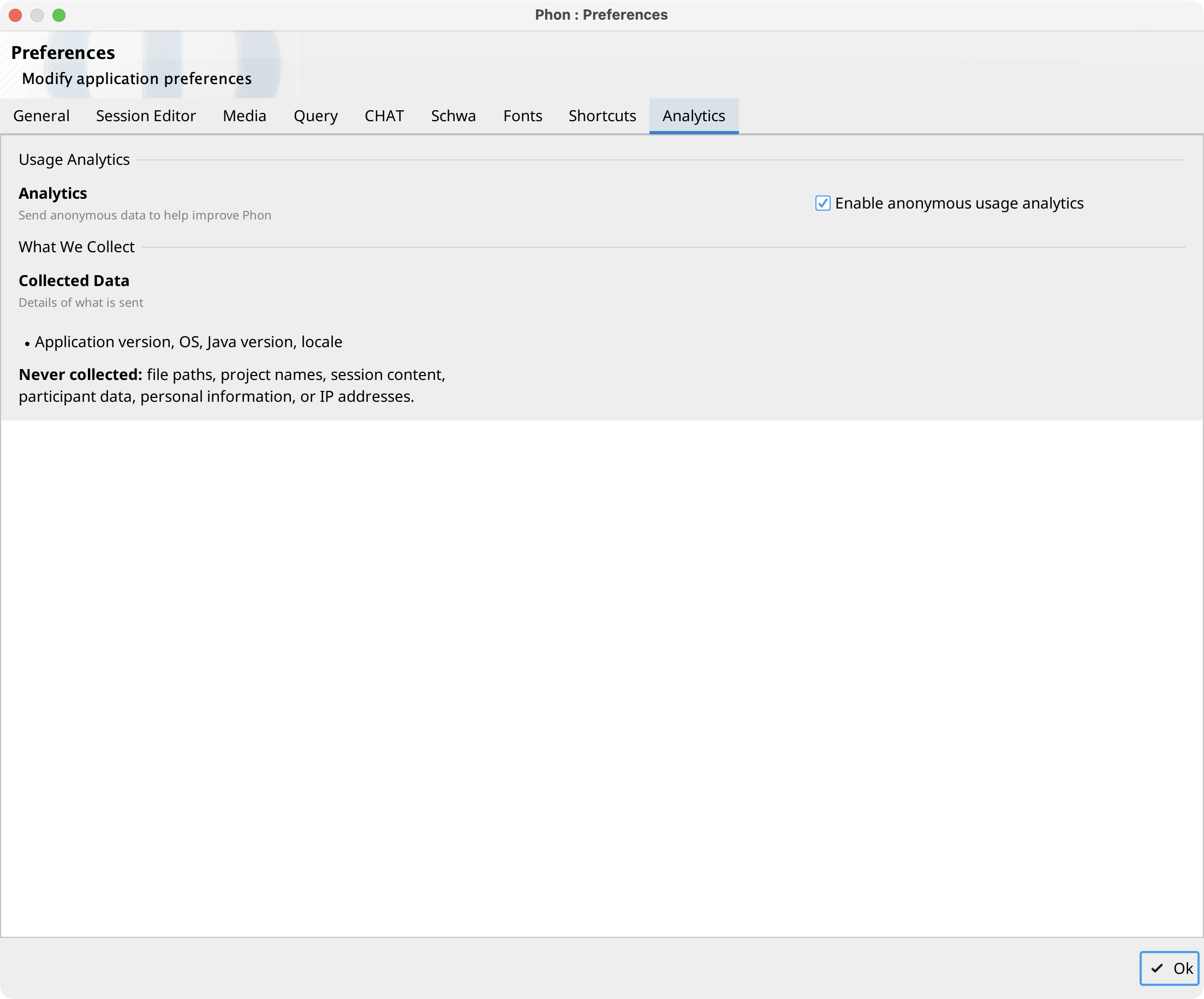
On first launch, Phon asks whether to enable anonymous analytics. Select Enable Analytics or No Thanks; the choice can be changed here later.
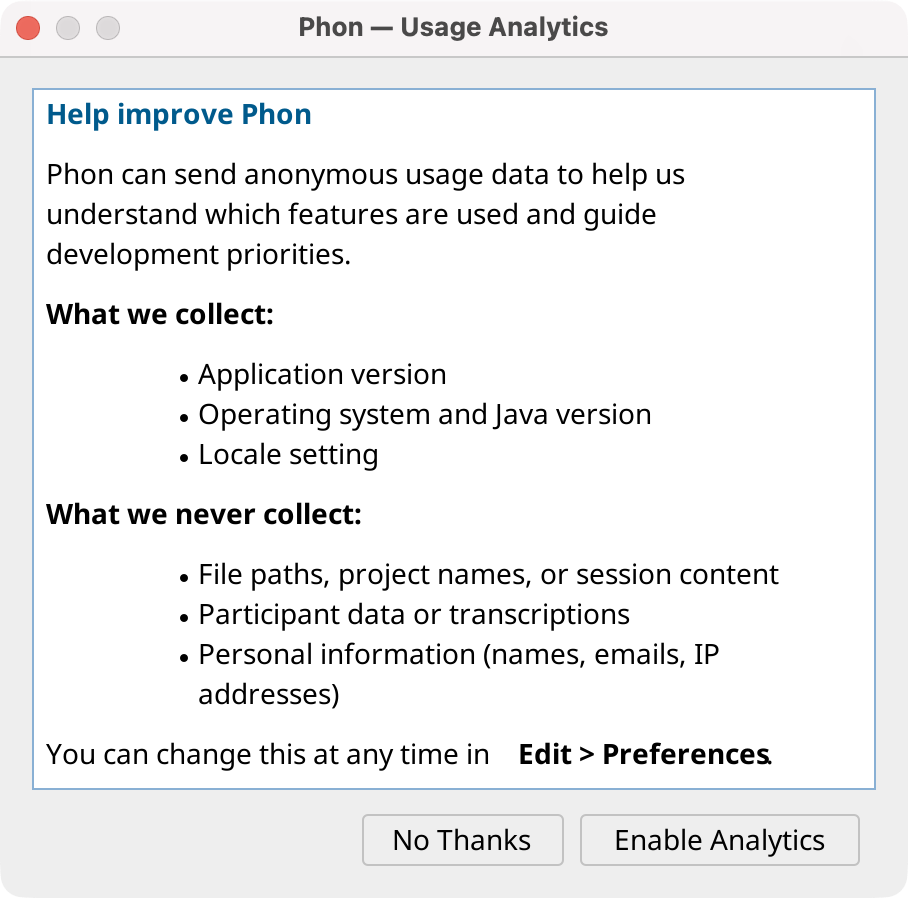
Use Enable anonymous usage analytics to opt in or out. The transmitted environment data includes the application, operating-system, Java, and locale versions. Phon does not include file paths, project names, session content, participant data, personal information, or IP addresses in its analytics events.
Fonts
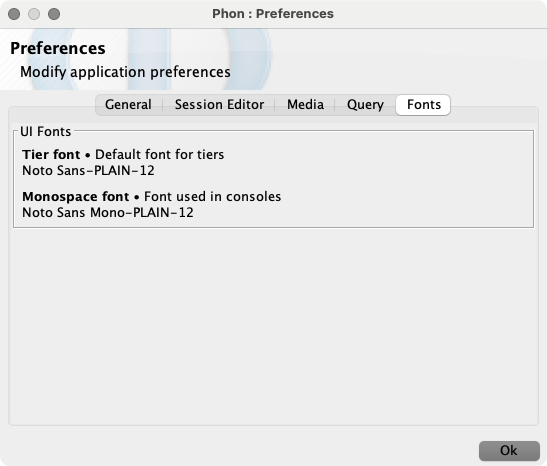
The Fonts tab selects the default font used for IPA and orthographic tiers and the monospace font used by script consoles and code editors. Reopen or restart Phon after changing font settings so every open window uses the new fonts.
Shortcuts
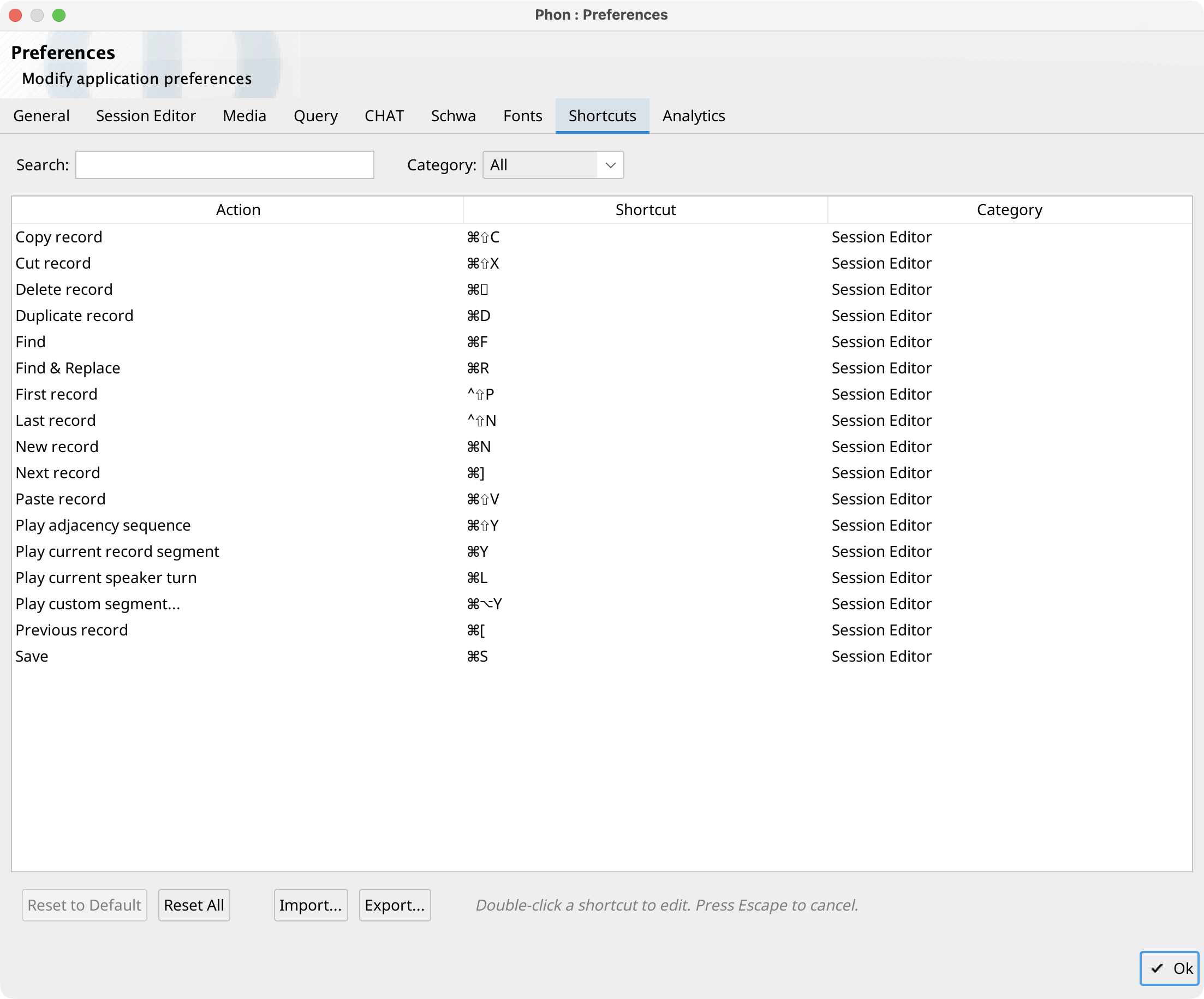
The Shortcuts tab lists registered keyboard commands. Search by name, description, or key combination, or filter the table by category.
Double-click a shortcut cell and press a new key combination. If that combination is already assigned, Phon identifies the conflict and can remove the other assignment after confirmation. Use Reset Selected or Reset All to restore defaults.
Import reads shortcuts from a .properties file. Export writes either customized shortcuts only or all shortcuts to a .properties file.
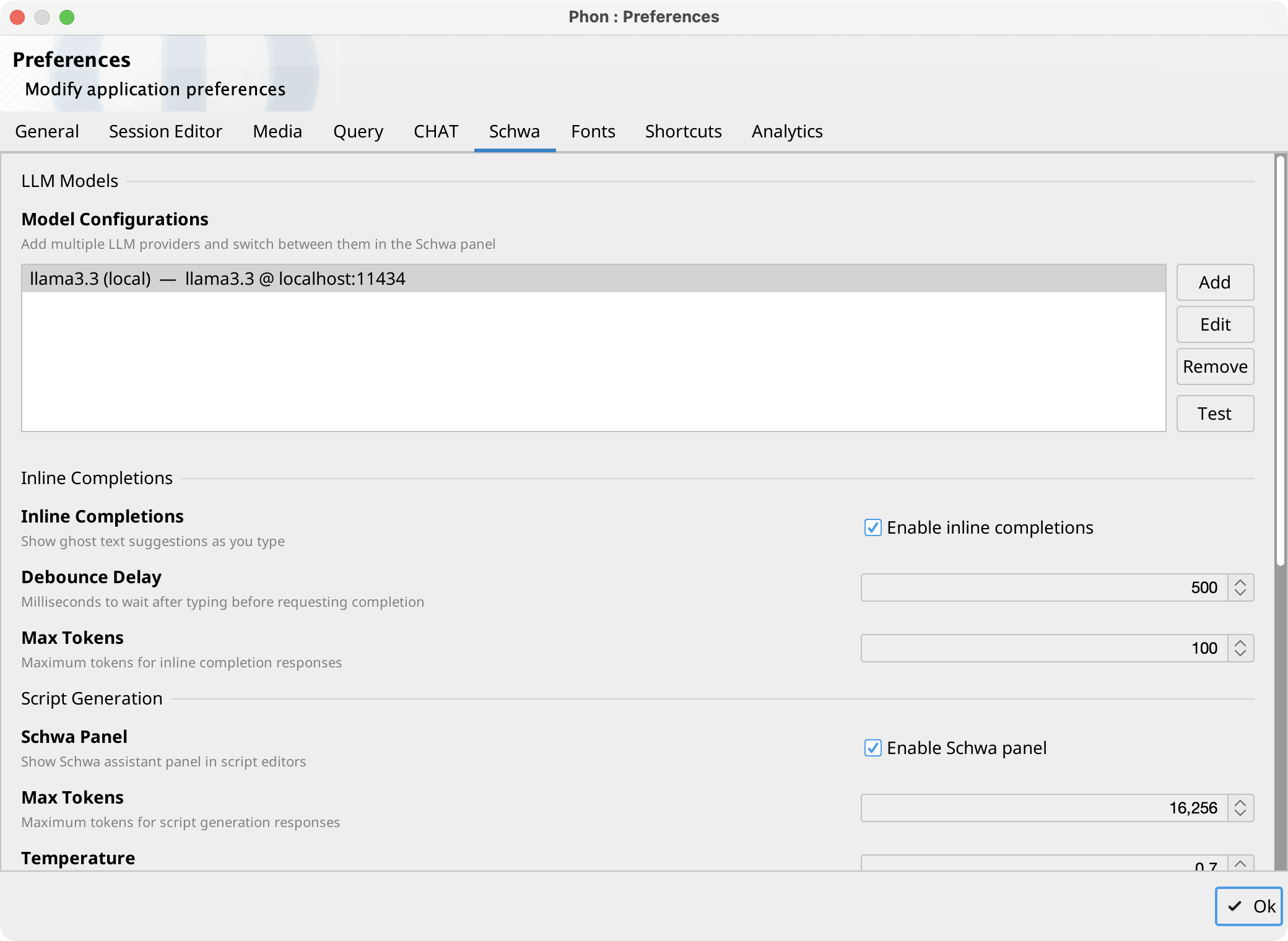
Schwa
The optional AI plug-in adds a Schwa tab. Under LLM Models, add or edit configurations with a provider, display name, API endpoint, API key when required, model name, agent-feature level, reasoning effort, and context-window size. Remove deletes a configuration; Test checks the selected configuration's endpoint and model.
Inline Completions enables ghost-text suggestions in supported script editors and controls the typing delay and maximum response tokens. Script Generation enables the Schwa side panel in script editors and controls maximum tokens and temperature.
MCP Server controls the embedded server that exposes Schwa's tools to external AI clients: automatic start at launch, the loopback port, a start/stop control with live status, the access token with Copy and Regenerate, and client setup instructions. See MCP Server.
See Schwa for the Session Editor assistant and its Ask, Edit, and Code modes.