
Project Manager
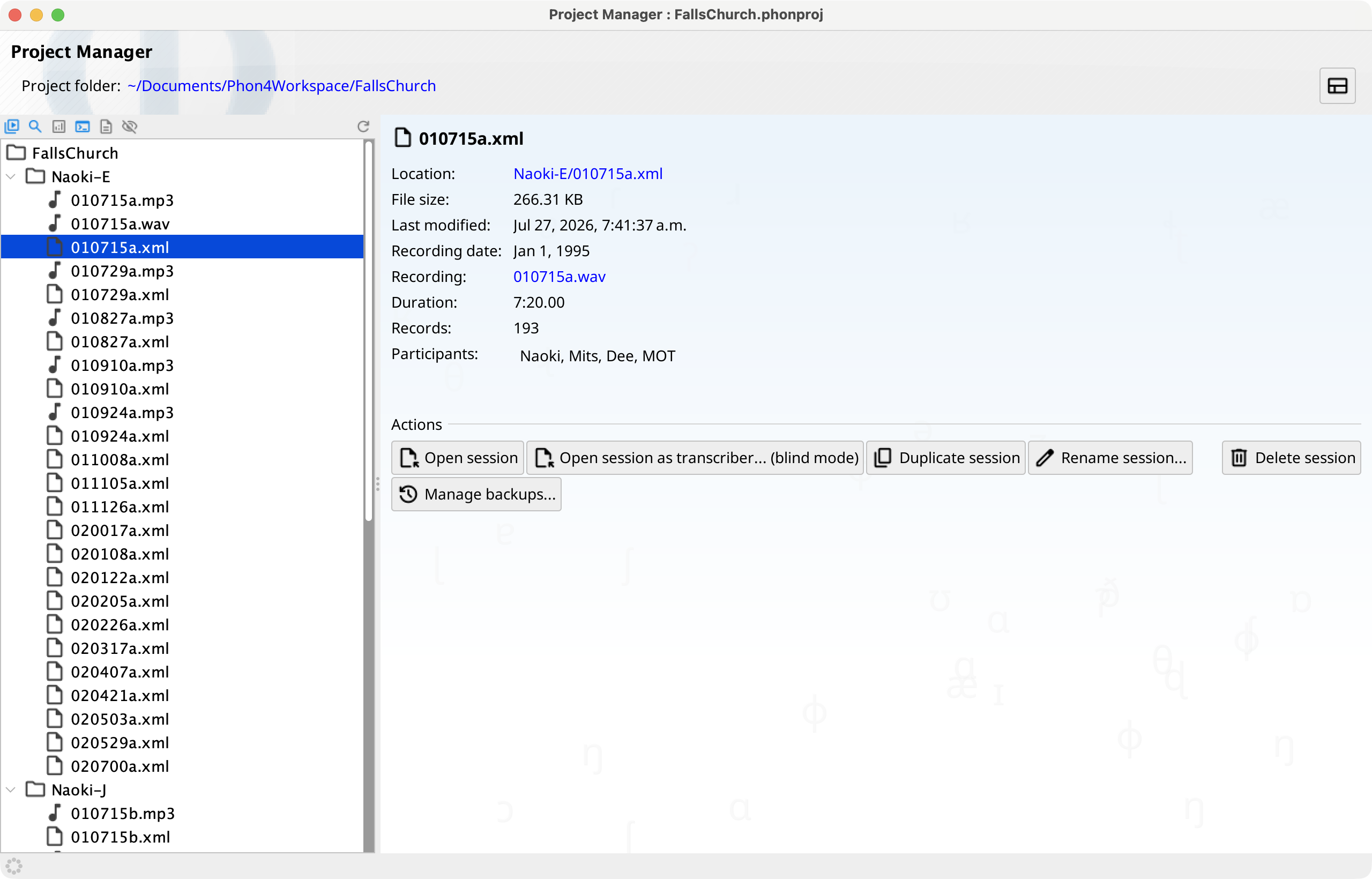
The Project Manager window displays project data as a hierarchical file tree. It provides a split-pane layout with the file tree on the left and a context-sensitive information and actions panel on the right.
Tree Layout
The Project Tree displays the project contents as an expandable tree. The root node represents the project folder. Beneath the root, you will see corpus folders and any sessions stored directly in the project root.
Each corpus folder can be expanded to reveal the sessions it contains. Nested corpus folders (subfolders within a corpus) are also supported, allowing deeper organizational hierarchies.
The header displays the project folder path and a button to switch back to the classic view. The status bar at the bottom shows progress during operations.
Special Sections
The toolbar at the top of the tree provides toggle buttons to show or hide special sections and files in the tree:
- Media — Shows media folders associated with the project, including the project media folder, global media folders, and any corpus-specific media folders. Browse and manage media files directly from the tree.
- Scripts — Shows script folders including user scripts, project scripts, and custom script libraries. Scripts can be opened in the script editor or executed directly from the tree.
- Queries — Shows available queries organized by source: stock queries included with Phon, user-created queries, and project-specific queries.
- Analyses — Shows analysis workflows organized by source: stock analyses, user analyses, and project-specific analyses.
- Show all project files — Shows files that are not represented by the standard corpus, session, media, script, query, or analysis nodes.
- Show hidden files — Includes hidden files in the tree. This control is useful only when all project files are shown.
The toolbar also provides Refresh project tree. The visibility settings, expanded nodes, and selection are saved per project and restored when the project is reopened.
Preview Panel
The right side of the Project Tree displays a preview panel that updates based on the currently selected item in the tree:
- Project root selected — Shows project information including the project folder path and Git repository status (if the project is a Git repository).
- Corpus folder selected — Shows the corpus folder path, media folder assignment, number of sessions, and corpus description.
- Session selected — Shows session metadata including the number of records, session date, last modified date, and participant information.
- Media, Script, Query, or Analysis selected — Shows relevant details for the selected item, such as file path and description.
Actions
Actions in the Project Tree are available through the context menu (right-click or Control+click on macOS), the Project window menu, and keyboard shortcuts.
Corpus Actions
When a corpus folder is selected in the tree, the following actions are available:
- New Corpus — Create a new corpus folder. Type the corpus name directly in the tree and press Enter.
- Rename Corpus — Rename the selected corpus. Press F2 or use the context menu.
- Duplicate Corpus — Create a copy of the selected corpus with all its sessions.
- Delete Corpus — Delete the selected corpus and all its sessions. Press Delete or use the context menu.
- Edit corpus template... — Open the session template editor to set default participants and tiers for new sessions in this corpus.
Session Actions
When a session is selected in the tree, the following actions are available:
- New Session — Create a new session in the selected corpus. Type the session name directly in the tree and press Enter.
- Open Session — Open the session in the Session Editor. Double-click the session or press Enter.
- Rename Session — Rename the selected session. Press F2 or use the context menu.
- Duplicate Session — Create a copy of the selected session in the same corpus.
- Delete Session — Delete the selected session. Press Delete or use the context menu.
Keyboard Shortcuts
The following keyboard shortcuts are available in the Project Tree:
- Enter — Open the selected session
- F2 — Rename the selected item
- Delete — Delete the selected item
- F5 — Refresh the project tree
- Menu+C — Copy selected sessions or corpora
- Menu+V — Paste sessions or corpora into the selected corpus
Drag and Drop
Sessions and corpora can be moved or copied using drag and drop within the Project Tree or between two open project windows. Drag sessions onto a corpus folder to move them, or drag corpora to copy them to another project.
Git Integration
If the project folder is a Git repository, the Project Tree displays Git status indicators on files and folders in the tree. Modified, added, and untracked files are visually distinguished.
Git actions such as Commit and Pull are available from the Project menu when a Git repository is detected. The preview panel also shows a Git status summary when the project root is selected.