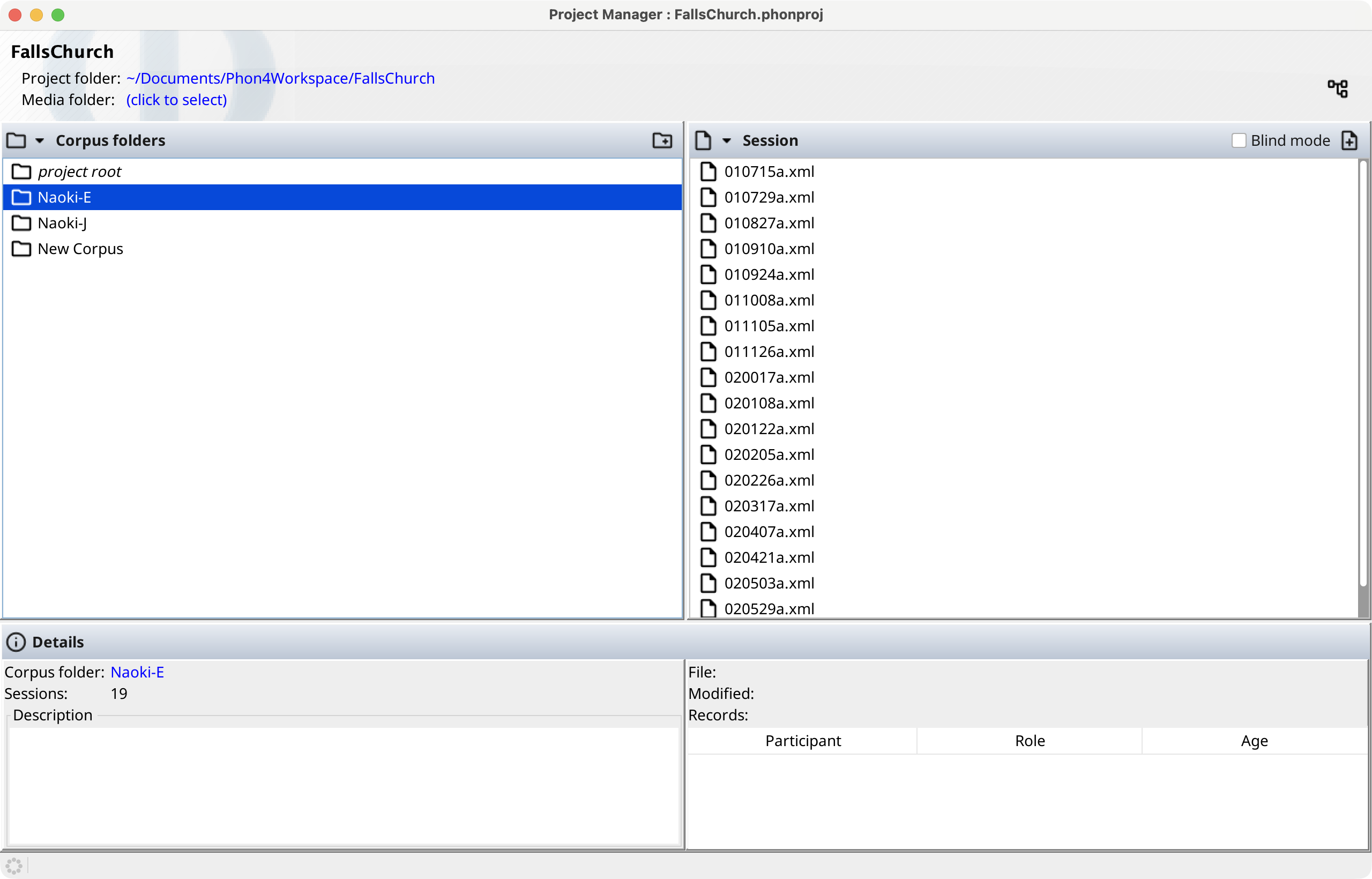
Project Manager (classic view)
The Project Manager window is displayed when you open a project from the Welcome window or by using the menu item. This is the classic two-panel view showing corpora on the left and sessions on the right.
Project File Structure
Phon projects are stored on a hard drive as directories. This folder is displayed at the top of the Project Manager window (clicking the folder path will open Finder (macOS) or Explorer (windows) with the project folder selected.)
The directory for each project will contain the following:
- A project.xml file which contains the information Phon requires for the project.
- A series of folders which correspond to each of the project's
corpora (usually a collection of transcribed sessions for
a specific target speaker). Project corpora are displayed in the left-hand list
of the window.
- Within each corpus folder are a series of xml files corresponding to each session. The xml files which are named beginning with '~' are session autosaves, created in order to prevent loss of data in the event of an unexpected shutdown.
The directory for each project may also contain the following:
- A project resources folder called '__res', which is a
system directory created by Phon to contain useful components for the project.
This folder may contain:
- A media folder, which is the default location for the media for the project and may contain media segments exported from Phon.
Project Root Corpus
Sessions can be stored directly in the project folder without being placed inside a corpus subfolder. These sessions belong to the project root corpus, which is displayed as project root in the corpus list.
The project root corpus is useful for simple projects that do not require corpus-level organization, or for sessions that do not belong to a specific corpus grouping.
Project Media Folders
- Corpus media folder (if assigned)
- Project media folder
- Global media folders (see Media Folders)
To assign project media folders, select from the Project Manager window. A similar menu item is available for corpus media folders under the Corpus submenu. Actions for controlling media folder selection are available from popup menus accessed by clicking on the media folder labels at the top of the window and in the corpus details section.

Relative Paths
Absolute paths are full paths to files/folders while relative paths are portions of a full path. On macOS absolute paths begin with a forward slash and on windows absolute paths begin with the drive letter.
Using relative paths for media folders can make sharing projects easier. By specifiying a common folder setup between project files and media folders for all people - e.g., using ~/Documents/PhonWorkspace for project files and ~/Documents/PhonMedia for media files - other users will not need to modify their individual media folder selections.

Project Actions
The following actions are available from the Project window menu when the Project Mangaer window is focused.
Check sessions
-
Select the menu item.
This will open the Check sessions window. -
Select the project, corpora, or sessions whose transcriptions you wish to check, and click Next.
Phon will check each selected session, and any phone transcription errors will be printed in red, with their corpus, session, record number, and tier (IPA Target or IPA Actual).Note:To resolve a reported error, return to the Project Manager window and open the session in which the error occurred, then navigate to the relevant record and visually check its IPA tiers.

Reset Syllabification
In the event of display issues in Target Syllables or Actual Syllables in the Syllabification & Alignment view, it may be necessary to reset the syllabification of IPA Target and IPA Actual transcriptions.
-
Select the menu item.
This will open the Check Sessions window. -
Select the Reset syllabification option.
-
Choose an appropriate syllabifier language by selecting it from the drop-down menu.
-
Select the project, or the corpora or sessions whose syllabification you wish to reset, and click Next.
Phon will re-perform the syllabification for each selected session using the syllabifier language chosen in the Preferences dialog.Note:After resetting syllabification or alignment, it will be necessary to visually verify these tiers.
Reset Phone Alignment
In the event of display issues in the Alignment tier of the Syllabification & Alignment view, it may be necessary to reset the phone alignment of IPA Target and IPA Actual transcriptions.
-
Select the menu item.
This will open the Check Sessions window. -
Select the Reset phone alignment option.
-
Select the project, corpora, or sessions whose alignment you wish to reset, and click Next.
Phon will re-perform the alignment for each selected session.Note:After resetting syllabification or alignment, it will be necessary to visually verify these tiers.
Derive Session
Derive a new session using records from existing sessions.
From the Project Manager window:
-
Choose the menu item.
A Merge Sessions dialog will appear. -
Enter a Session name and Destination Corpus in the provided fields. Select one or more of the sessions for the split or merge and click Next.
The second page of the Merge Sessions dialog will appear.Note:If you chose only one session, the selected records will be put into the new session. If you select more than one session, the selected records will be merged into a new session. -
Select a session from the Session list at the left and choose whether to merge or split All records, a subset of Specific records, Records for participant(s) or Records from Search results. Repeat this process for all sessions in the Session list. Click Next.
This will begin the merging of the selected records/sessions.Note:If you choose to merge only specific records, you will have to specify the relevant record numbers. To specify several individual records, separate them with a comma and a space. To specify a range, separate the beginning and end record numbers with two periods and a space. If you choose to merge records for specific participants, you must select the participants from the list. If you choose to merge records from search results, you must select a past search from the list. - The newly derived session will appear in the specified corpus in the Project Manager.
Refresh Project
Refresh Project Manager window to reflect changes.
-
Choose the menu item or press F5.
Import from CSV file(s)
Import CSV (comma-separated values) files into Phon as sessions.
The CSV import wizard imports one or more CSV files into Phon as new sessions. Each row in a CSV file becomes one record, and columns are mapped to Phon tiers and session metadata. All selected files must share the same column count. If CSV column headers match Phon tier names (e.g., Orthography, IPA Target), columns are automatically mapped to the corresponding tiers.
The wizard is available from the menu in the Project Manager, Project Tree, or Session Editor windows.
Step 1: Settings
Select the CSV files to import and configure parsing options.
- Browse Files... — Select individual CSV files.
- Browse Directory... — Select a folder; all CSV files within it (including subfolders) are added.
Selected files appear in the Selected Files list. Use Remove or Clear All to manage the list. If the selected files have different column counts, an error is displayed. If headers differ, a warning is shown.
The CSV Settings panel provides the following options:
- Character Set — File encoding (default: UTF-8).
- Separator Options — One or more separators: Tab, Comma, Semicolon, Space, or Other (custom character). Multiple separators may be selected simultaneously.
- String Delimiter — Quote character surrounding
field values: double quote (
") or single quote (').
Under Other Options:
- Use First Row as Header — Treat the first row as column headers (enabled by default).
- Trim Spaces — Remove leading and trailing whitespace from field values.
The Preview table at the bottom of the panel shows the parsed contents of the first selected file, updated as settings change.
Step 2: Tiers
Map each CSV column to the appropriate Phon data type.
The left panel lists the CSV columns. Select a column to configure its mapping in the right panel:
- Import column — Check to include this column in the import; uncheck to skip it.
- Import as — Choose the column type from the drop-down. Available types are:
| Category | Column Types |
|---|---|
| Session | Corpus Name, Session Path, Session Name, Session Date, Session Media |
| Participant | Participant Name, Participant Role, Participant Language, Participant Birthday, Participant Age, Participant Education, Participant Sex, Participant SES |
| Record | Record Language |
| Tiers | Orthography, IPA Target, IPA Actual |
| Segment | Segment, Segment Start, Segment End, Segment Duration |
| Custom | User Tier |
Depending on the selected column type, additional options appear in the Options panel:
- Session Date / Participant Birthday — Choose
Default format (ISO) for
YYYY-MM-DDdates, or Localized with a locale and format style (Short, Medium, Long, Full). - IPA Target / IPA Actual — Select the Syllabifier Language used to syllabify imported transcriptions.
- User Tier — Enter the Tier Name for the custom tier in Phon.
For columns of type Orthography, IPA Target, IPA Actual, or User Tier, a
Blind Transcription panel is available. Check
Import as blind transcription and enter or select a
Transcriber ID. If the CSV headers use the pattern
TierName -- transcriberId, blind transcription columns are
auto-detected and the transcriber ID is pre-populated.
Step 3: Import
Click Next to start the import. A log panel displays progress and the currently processing file. When complete, a summary reports the number of sessions created and any warnings. Each row from the CSV file becomes one record in Phon with tiers as configured.
If the CSV data includes a Corpus Name or Session Path column, records are organized into sessions accordingly. Otherwise, each CSV file becomes a new session in the currently selected corpus.
Export to CSV file(s)
Export Phon sessions as CSV (comma-separated values) files.
The CSV export wizard exports one or more Phon sessions to CSV files. Session data is written as one row per record, with configurable columns for session metadata, participant information, tier data, and media segments.
The wizard is available from the menu in the Project Manager, Project Tree, or Session Editor windows.
Step 1: Settings
Choose the export mode and select sessions.
- Export mode — Select Single file to export all selected sessions into one CSV file, or One file per session to create a separate file for each session.
- CSV Settings... — Opens a dialog to configure encoding, separator character (Tab, Comma, Semicolon, Space, or Other), string delimiter (double or single quote), and whether to include a header row.
Use the Select Sessions tree to choose which sessions to export. The tree displays the project corpus hierarchy with checkboxes for individual sessions and corpora.
Step 2: Columns
Configure which data columns to include in the export.
Click the Add column dropdown to add columns from the following categories:
| Category | Column Types |
|---|---|
| Corpus Name | Corpus Name |
| Session | Session Path, Session Name, Session Date, Session Media |
| Participant | Participant ID, Participant Name, Participant Role, Participant Language, Participant Birthday, Participant Age, Participant Education, Participant Sex, Participant SES |
| Record | Record ID, Record Number, Record Language |
| Segment | Segment, Segment Start, Segment End, Segment Duration |
| Tiers | Orthography, IPA Target, IPA Actual, Phone Alignment |
| User tiers | Lists custom tiers found in the selected sessions |
Selected columns appear in the Selected Columns table. Use the up/down arrow buttons or drag-and-drop to reorder columns. Use the delete button to remove a column. If no columns have been added when advancing to this step, a default set is created: Orthography, IPA Target, IPA Actual, Segment Start, and Segment End.
Select a column in the table to configure its options in the Options panel:
- Column name — Click the edit button next to the column header to rename the CSV column.
- Exporting type — Change what data the column exports.
- Session Date / Participant Birthday — Choose Default format (ISO) or Localized with locale and format style.
- Participant Age — Choose Y;M.D (Phon
format, e.g.,
1;3.4) or ISO (e.g.,P1Y3M4D). - Orthography — Words only (strip coding) removes annotations, leaving plain text. Include blind transcriptions adds extra columns for each blind transcriber.
- IPA Target / IPA Actual — Include syllabification retains syllable markers. Strip diacritics removes diacritic marks. Include blind transcriptions adds extra columns for each blind transcriber.
- Segment / Segment Start / End / Duration — Choose the time format for media segment values.
- User Tier — Include blind transcriptions adds extra columns for each blind transcriber.
TierName -- transcriberId. This
format is compatible with the CSV import wizard's blind transcription
auto-detection.Step 3: Export
Click Next to proceed. A save dialog prompts for a file location (single file mode) or folder (one file per session mode). The export then runs, displaying a log of progress. When complete, a summary reports the number of sessions exported and any warnings.
In one-file-per-session mode, output files are named using the format CorpusName_SessionName.csv.
Copy Corpus
Copy a corpus to a different project.
-
Select the corpora you wish to copy in the source Project Manager window.
-
Using the mouse, drag the corpora over the corpus list of the destination Project Manager window.
The corpus folders will be copied into the destination project.
Copy Session
Copy a session to a different corpus.
-
Select the sessions you wish to copy in the Project Manager window.
-
Using the mouse, drag the sessions over the name of the destination corpus in the Project Manager window.
The sessions files will be copied into the destination corpus.