Logs, Buffers, and About Phon
These secondary windows provide application diagnostics and generated output.
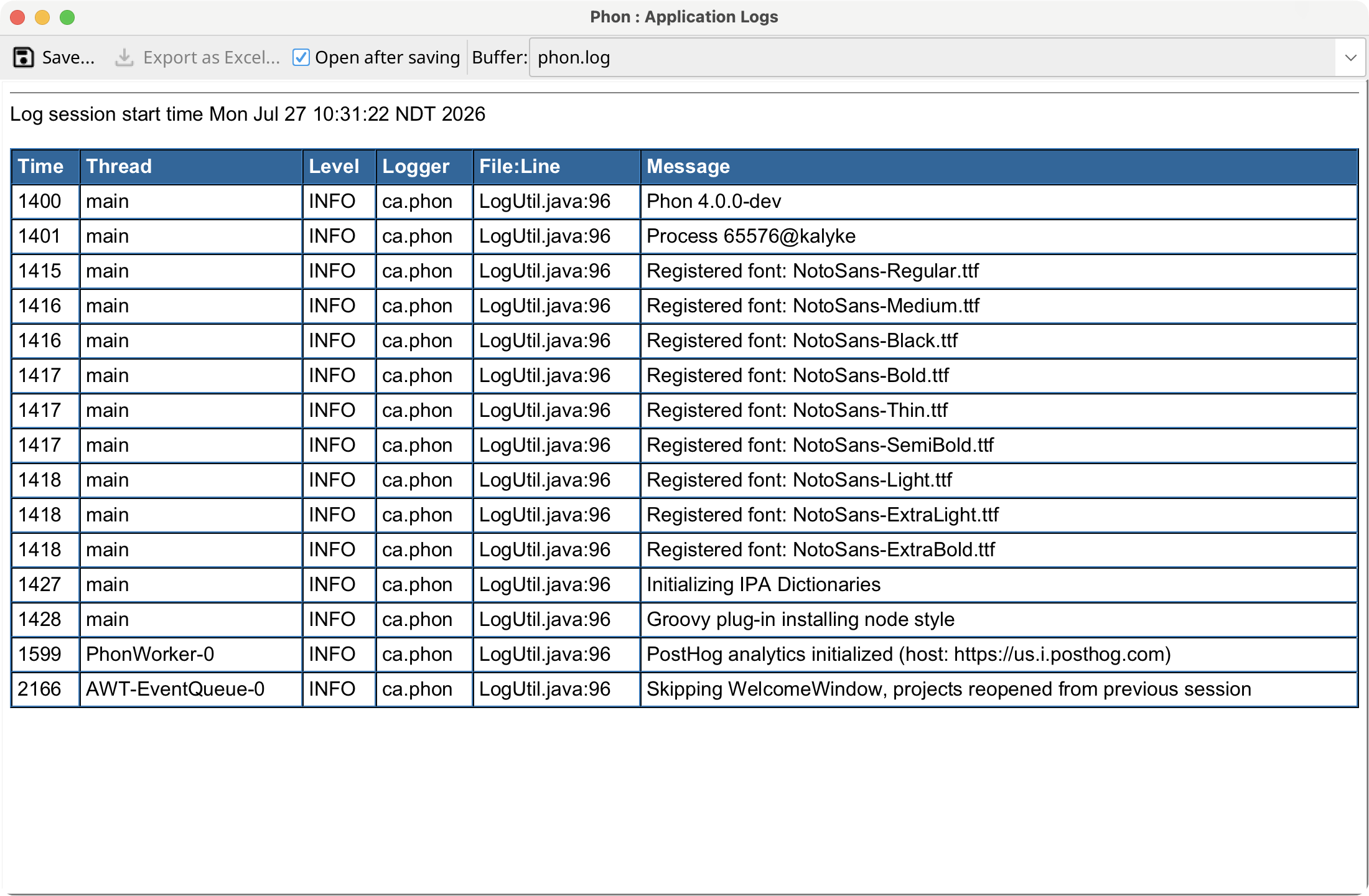
Application Logs
Select . The window initially displays the current HTML log. Its Logs menu switches to earlier compressed logs in newest-first order or opens the log folder in the operating system file browser.
Buffers
Phon opens the shared Buffers window when a script, acoustic listing, media report, text file, or other operation sends output to a named buffer. Switch named buffers from the selector or Buffer menu. Depending on its content, view a buffer as text, a parsed table, or HTML.
The Buffer menu can save the current buffer, save all buffers, print supported content, and close the current or all buffers. A producer may add other export actions, such as spreadsheet export, to its buffer.
About Phon
Select for application version and license information. The Help menu also links to the online manual and application license.
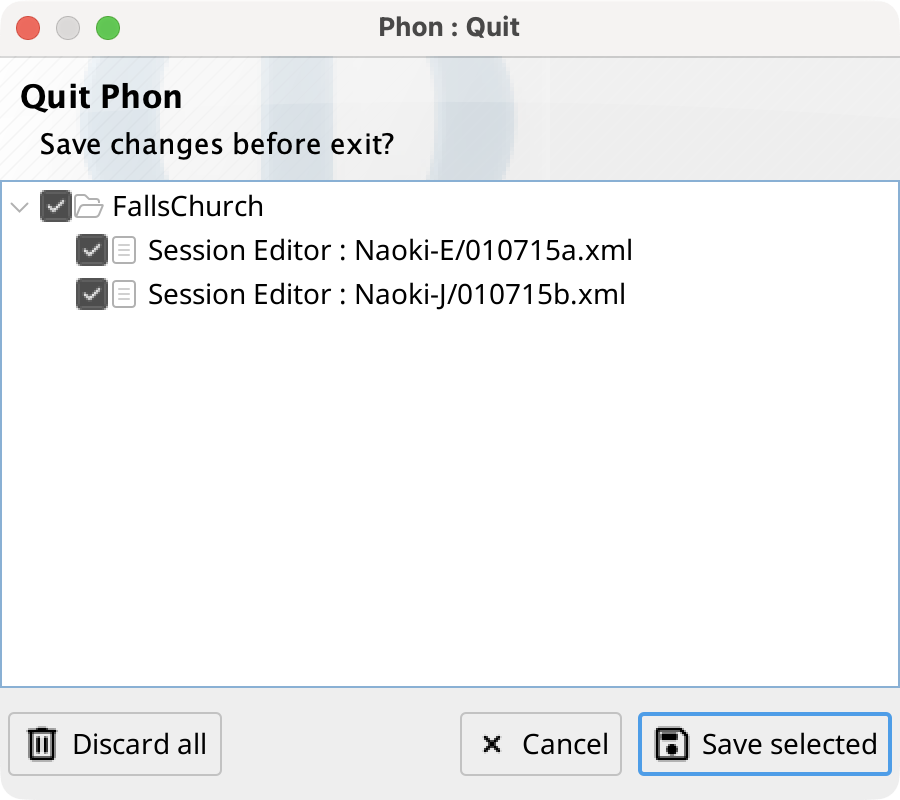
Save changes when quitting
If any open window has unsaved data when you quit Phon, the Quit Phon dialog groups those windows by project. All items are initially checked. Select Save selected to save checked items before quitting, Discard all to quit without saving any listed changes, or Cancel to return to Phon.