Session List

A session in Phon is a transcript of a portion of field data targeting one or more participants in a project.

Phon is designed to facilitate the transcription of media recordings (audio or video) taken of participants in a study. As such, a Phon session usually corresponds to one media recording and the transcript of this recording.

A session is organized into a series of records which correspond to individual utterances.

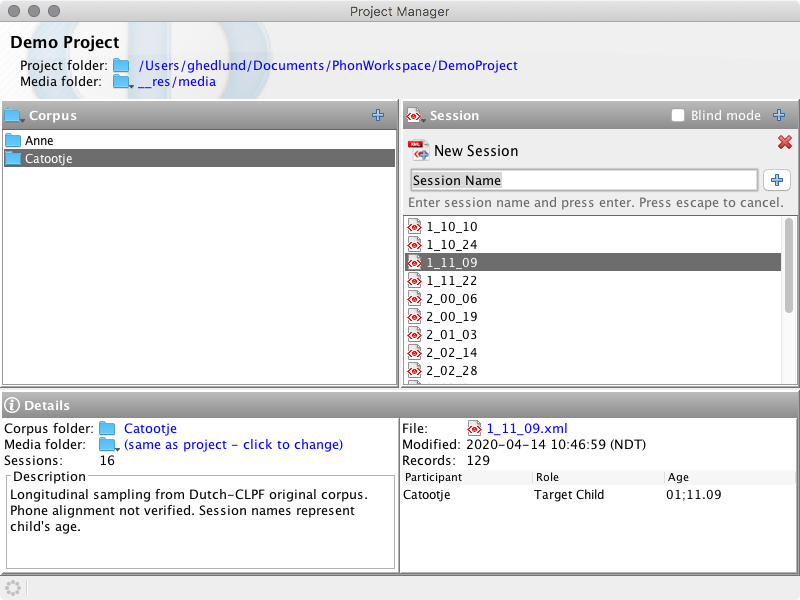
Sessions can be viewed in the Project Manager window. When a session is selected, the number of records in that session and the date it was last modified are displayed at the bottom of the list of sessions.

Figure 1. Session List
Session List

Session Actions

The following actions are availble from Project window menu and the session list contextual menu. You may access the session contextual menu by right-clicking (or CMD+click on macOS) inside the corpus list control or by clicking the Session title label in the Project Manager window.

New session

You may create a new session by clicking the '+' icon in the corpus list titlebar and typing just the name of the new session in the text field displayed. Pressing Enter or clicking the '+' button to the right of the text field will create the new session in the selected corpus. Session creation can be canceled by pressing Escape or clicking the 'X' icon in the session list.
Figure 2. Create Session (Quick)

Create Session (Quick)

If a __sessiontemplate.xml session file exists in the corpus folder new sessions will be created with the contents of the template file. To edit the session template for a corpus choose Open session template from the corpus contextual menu.

Open session

Open a session in the default mode.

From the Project Manager window:
  1. Ensure that the Blind transcription box is deselected to open a session in default mode. Click the desired corpus, and double-click on the session that you would like to open.

    The selected session will open in the Session Editor.

Open session as transcriber (blind mode)

Transcribe in multi-blind mode.

From the Project Manager or Project Tree window:

  1. Select the Blind transcription checkbox and double-click on the session you wish to transcribe. Alternatively, select Open session as transcriber... from the context menu.

    A dialog will prompt you to identify yourself as a new or existing transcriber. In the Project Tree view, if the session already has transcribers, a popup menu lists existing transcribers directly.
    • If you are a new transcriber, enter your full name and a username. Optionally select Use password and enter your password in both fields. Click OK.
    • If you are a returning transcriber, select your username from the list. Enter your password if required and click OK.
    The Session Editor will open with your transcriber identity displayed in the title bar.

For detailed information on the blind transcription workflow, see Blind Transcription.

Rename session

Change a session name in your project.

From Project Manager window:
  1. Right-click (CTRL+click) on the session you wish to rename, and choose Rename Session from the context menu.

    The Rename Session window will appear.
  2. Follow the steps in the Rename Session window and click OK.

    You will be returned to the Project Manager window, with the session renamed.

Delete session

Remove a session from your project.

From Project Manager window:
  1. Right-click (CTRL+click) on the session you wish to delete, and choose Delete Session from the context menu.

    A dialog will appear asking you to confirm that you would like to delete this session and informing you that this action cannot be undone.
  2. If you are unsure, click No. To continue and delete the session, click Yes.

    The session will no longer appear in the Project Manager window.

Duplicate session

Create a copy of a session within the corpus that contains it.

From Project Manager window:
  1. Right-click (CTRL+click) on the session you wish to duplicate, and choose Duplicate Session from the context menu.

    A duplicate of your session, with the suffix "(copy)" will appear in the Project Manager.

Move session

Move a session to a different corpus.

From Project Manager window:
  1. Right-click (CTRL+click) on the session you wish to move, choose Move Session To from the context menu, and click on the corpus you wish to move your session to.

    A dialog will appear asking you to confirm that you would like to delete the session from its original location. Click Yes. Your session will be moved to the selected corpus.
    Note:
    You may move your session to a corpus within the current project, to another open project, or to any project in your workspace folder.