
Analysis Composer
Open Analysis Composer... from the Analyses menu or open an analysis from the Project Tree. The composer builds a reusable analysis by arranging existing stock, user, and project analyses and queries in an ordered table.
Double-click an item in the library tree or select it and use Add. You can also append an analysis file from disk. Select a table row to configure that component, then duplicate, rename, remove, drag, or use the arrow buttons to change the order.
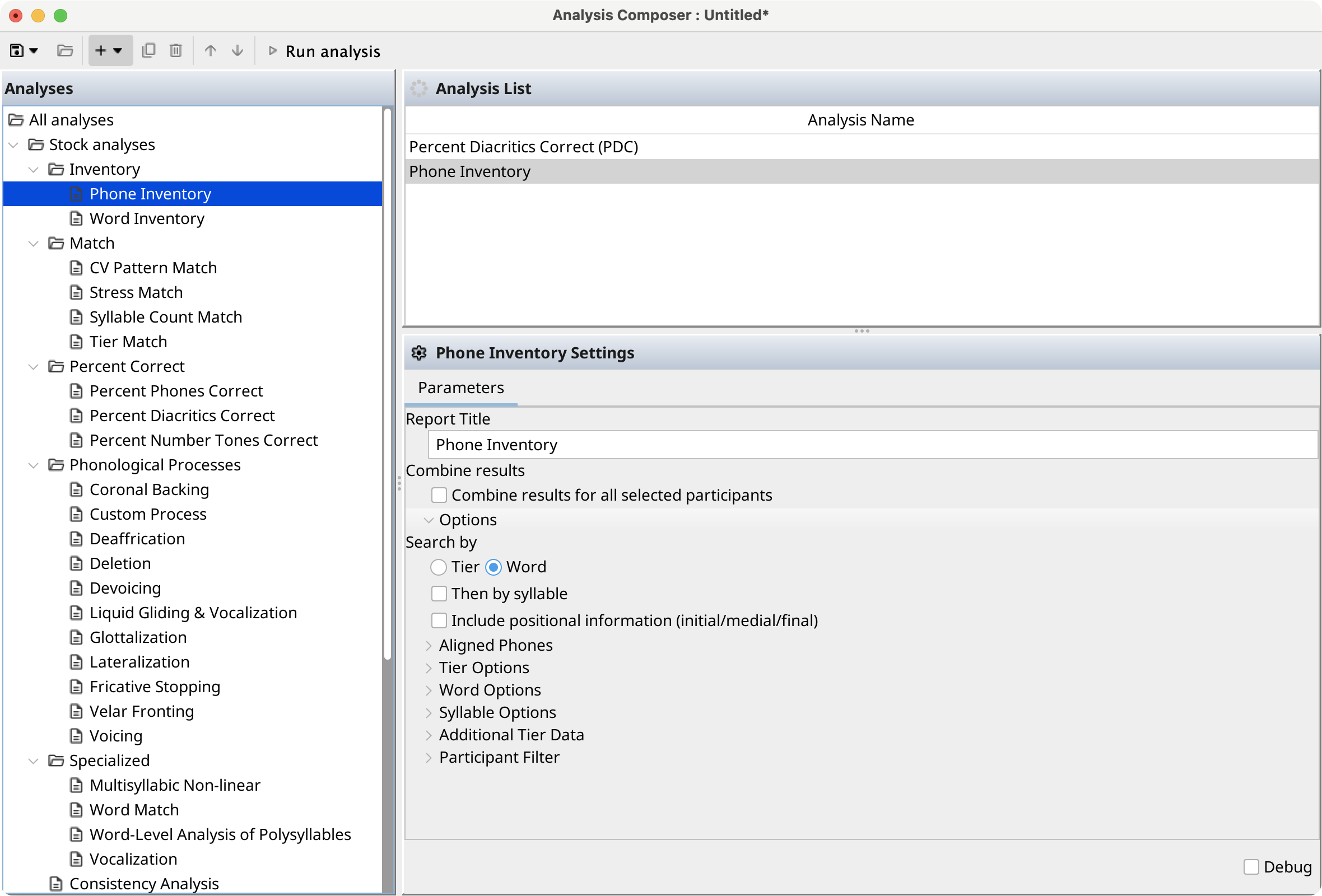
Use the save menu to store the analysis in project resources, the user library, or another location; the folder button opens an existing analysis. Select Run or press F7 to open the analysis wizard and choose its sessions, participants, and parameters. Open in Composer (advanced) exposes the underlying operation graph for advanced editing.