
Participants
The Participants view manages the people associated with the current session. Select its button in the left view strip or press the platform menu shortcut plus 2.
Each card summarizes a participant. The default fields are Role, Name, ID, and Age. Select Show/hide card fields to also show or hide Sex, Language, Group, and Birthday. This field selection is saved with the editor's view state.
A transcript record's speaker label identifies its participant. Records with no assigned participant use Unidentified.
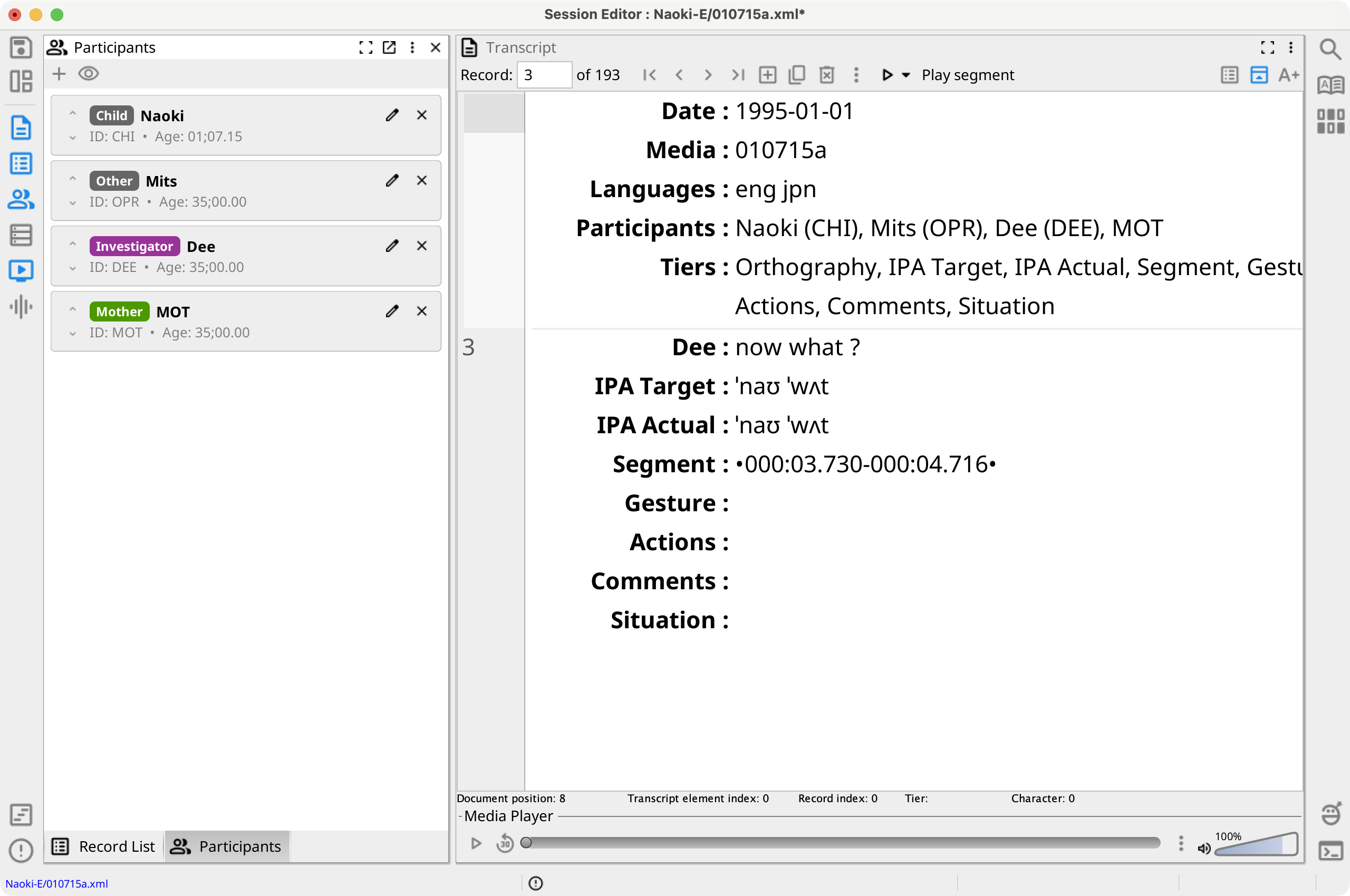
Add a Participant
Select Add participant. If the project contains saved participants, choose one from a role submenu or select New participant. If the project list is empty, a new participant card opens directly.
A new participant defaults to the Target Child role and a unique ID. Role and ID are required. The optional fields are Name, Sex, Birthday, Age, Language, First Language, Birthplace, Group, Education, SES, and Other. Select Save to add the participant or Cancel to discard the new card.
Choosing a project participant copies their descriptive fields into the session. Phon assigns a different ID if that ID is already in use in the session.
Edit and Order Participants
Select the pencil button on a card to edit the participant in place. The editor warns when an ID is empty or contains spaces, when a birthday is after the session date, or when Age and Birthday do not agree. The field-label menus can derive an ID from the selected role, calculate Age or Birthday, and clear optional fields.
Drag cards to reorder participants, or use the up and down arrow buttons. The order is also used by views that display participant lists.
Open a card's context menu for the dialog-based participant editor and its Anonymize command. The context menu can also assign that participant as speaker for every record currently marked Unidentified.
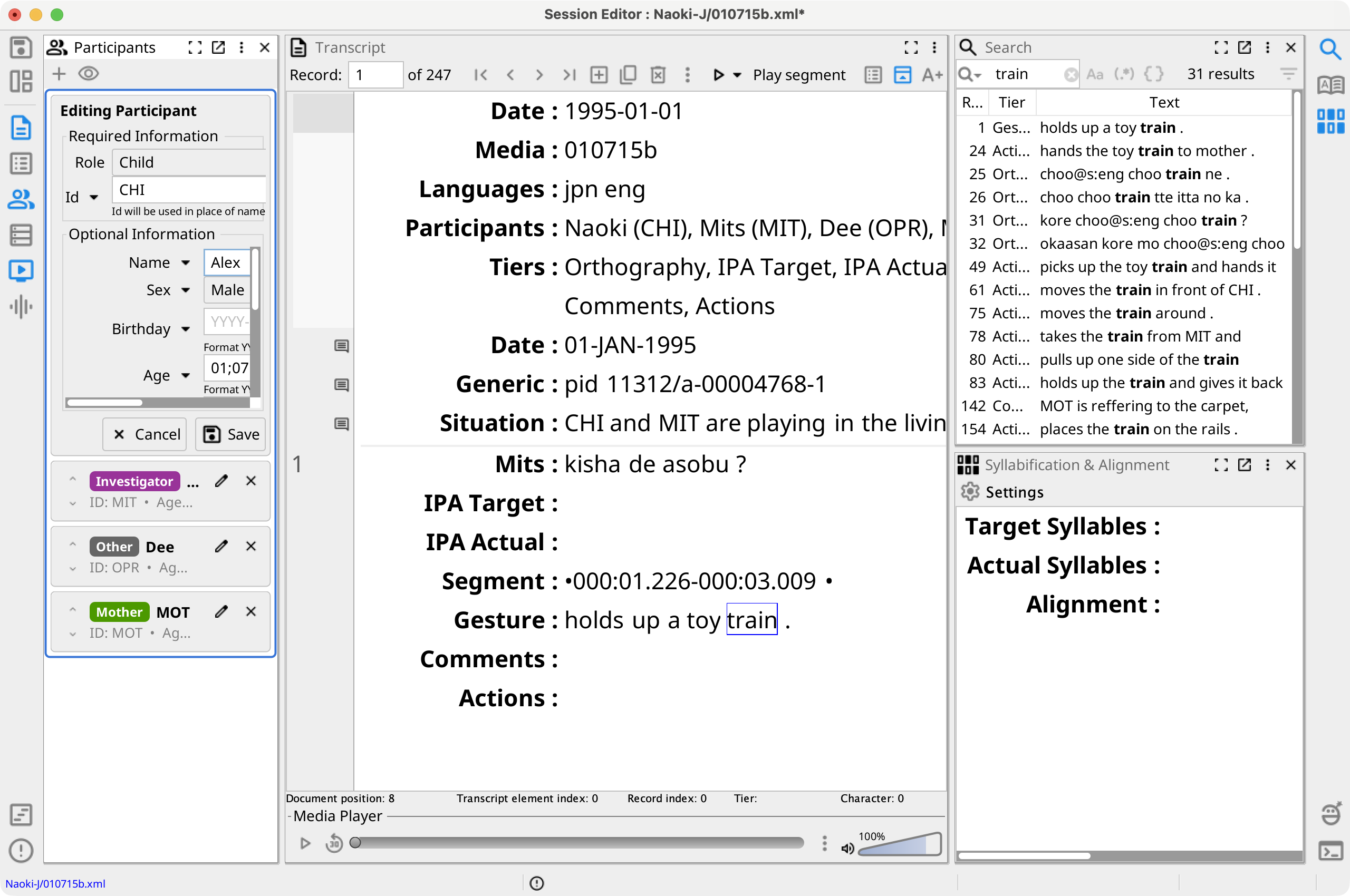
Delete a Participant
Select the close button on a card, or use its context menu, and confirm the deletion. Records assigned to that participant are changed to Unidentified. Phon reports how many records changed and offers to undo the operation.
Project Participants
When a session is saved, its participants are merged into the project's reusable participant list. Matching uses ID, name, and role; the most recently saved values replace the existing matching entry.
In the Project Tree, select Manage Participants & Transcribers... to inspect or remove entries from the project-level lists. Removing a project-list entry does not remove it from existing sessions.