
Records
A record represents one utterance by one speaker. It contains the record's Orthography, IPA Target, IPA Actual, Segment, Notes, and other visible tier values. Records appear among comments and gems in the session transcript.
Use the Record List view to review and filter the session, select multiple records, play their media segments, or apply batch actions.
Navigate Records
Use the record field and navigation buttons in the Transcript toolbar, or use the following default shortcuts:
- First record — Control+Shift+P on macOS or Alt+Shift+P on other platforms.
- Previous record — Menu+[.
- Next record — Menu+].
- Last record — Control+Shift+N on macOS or Alt+Shift+N on other platforms.
To go directly to a record, enter its number in the toolbar's record field and press Enter.
Create, Duplicate, or Delete a Record
- New record (Menu+N) inserts an empty record after the current record.
- Duplicate record (Menu+D) inserts a copy of the current record, including its speaker and tiers.
- Delete record (Menu+Delete) removes the current record. Phon asks for confirmation by default.
Move and Sort Records
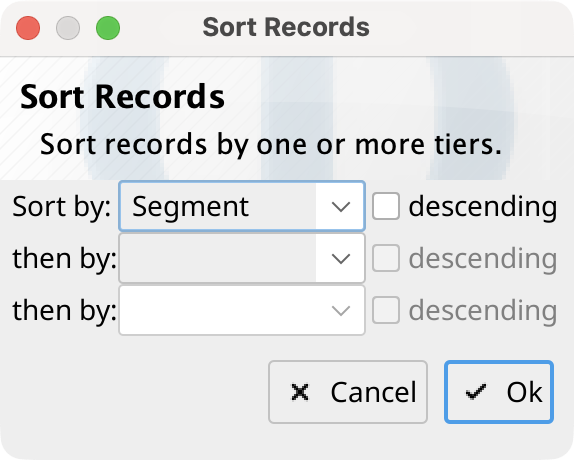
The Session menu can move the current record to the beginning, backward, forward, or to the end. Sort records... sorts by as many as three keys. Each key can be Speaker or a session tier and can be sorted in ascending or descending order. Segment is the initial first key.
Copy, Cut, and Paste Records
Use Copy record (Menu+Shift+C), Cut record (Menu+Shift+X), and Paste record (Menu+Shift+V) from the Session menu. Paste inserts after the current record and adds a copied participant to the session when needed.