
Session Check
The Session Check view validates the session data and displays errors and warnings in a table. It opens as a bottom panel below the transcript.
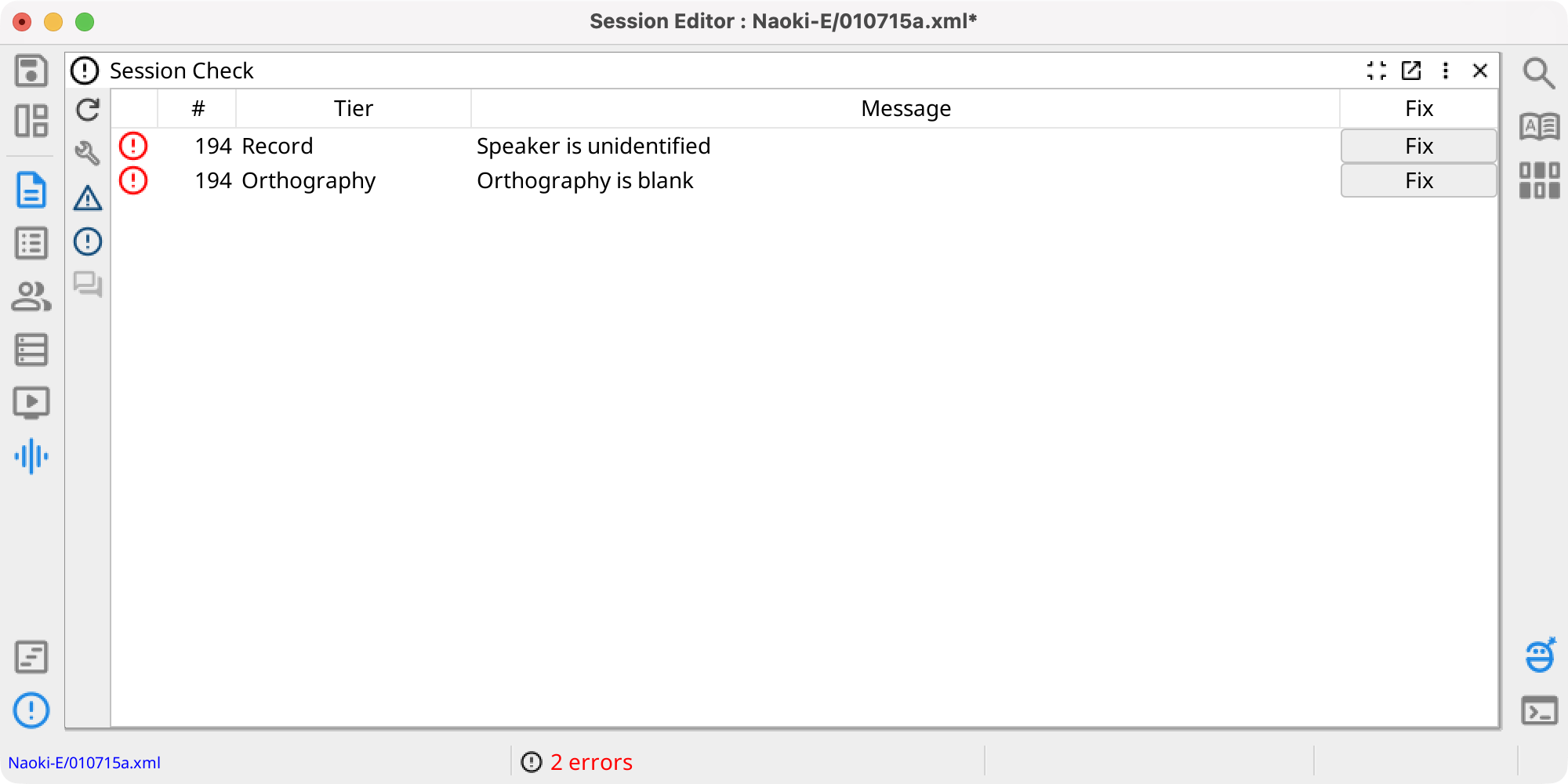
The validation results table shows the following columns:
- # — Record number where the issue was found
- Tier — The tier containing the issue (e.g., Orthography, IPA Target)
- Message — Description of the error or warning
- Fix — A quick-fix button when an automatic fix is available
Issues are indicated with icons: a red circle for errors and a yellow triangle for warnings. Double-click a row to navigate to the affected record and tier in the transcript.
Filtering Results
The left toolbar of the Session Check view provides controls for running checks and filtering the table:
- Refresh — Re-run the validation checks.
- Fix all issues — Apply the first available quick fix to every fixable issue. The changes are grouped into one undoable edit.
- Toggle warnings — Show or hide warning-level issues.
- Toggle errors — Show or hide error-level issues.
- Toggle CHAT strict mode — Apply stricter CHAT-oriented validation rules, including media-name requirements. Changing this setting refreshes the results.
Quick Fixes
Some issues have automatic fixes available, indicated by a Fix button in the rightmost column. Click Fix and select a fix when more than one correction is available.
Checks can report transcript syntax and alignment problems, overlapping media segments for the same speaker, and media-file problems. Available quick fixes depend on the issue. Correct problems without a quick fix manually in the transcript or session settings.
Error and Warning Count
The total count of errors and warnings is displayed in the bottom status bar of the Session Editor. Errors are shown in red and warnings in orange. Click the count to open the Session Check view.
Validation runs when the session finishes loading and updates affected results when tier, comment, or gem data changes. Use Refresh to run every check again.