Import from TextGrid
The Import from TextGrid wizard imports Praat TextGrid files into Phon sessions. The wizard provides a guided, multi-step workflow for loading interval tiers from TextGrid files into session timeline tiers and Phon tiers (Orthography, IPA Target, IPA Actual, Phone Intervals, or User tiers). It is available in the Session Editor from the Speech Analysis view.
The import wizard has four steps:
Step 1: File & Records
In this step, select a TextGrid file and configure how records should be created or updated.
Select TextGrid File
Click Browse... to select a Praat TextGrid file (.TextGrid). The wizard automatically detects a TextGrid file with the same base name as the current session's media file (e.g., session001.WAV → session001.TextGrid).
After selecting a file, the wizard displays:
- The file name and path
- The time range of the TextGrid (e.g.,
0.000 - 5.234 s) - A list of available interval tier names in the TextGrid
Import Modes
Choose one of three import modes:
- Import all TextGrid tiers as session-level interval tiers — Add all TextGrid tiers as session-level interval tiers without creating or updating records. This mode is useful when you only need the interval data from the TextGrid (e.g., annotation timestamps) without modifying session records.
- Create records from TextGrid — Create new session records based on intervals in the selected TextGrid tier. Configure record creation options below.
- Update existing records from TextGrid — Add interval tiers to existing records without creating new records. Useful for adding annotations to an existing set of utterances.
Record Creation Settings
The following settings are shown only when Create records from TextGrid is selected.
Record Tier
Select the TextGrid tier that defines record boundaries. The wizard uses this tier to:
- Create new records for each interval
- Group contiguous intervals with gaps smaller than the specified max gap
Speaker
Assign a speaker/participant to the imported records. Click the person add icon to add a new participant if needed.
Group Contiguous Intervals
When enabled, intervals separated by gaps smaller than the specified maximum gap are merged into the same record.
- Max gap (s)
- Maximum gap size (in seconds) that allows contiguous intervals to be
grouped. Set to
0.0to disable grouping.
Padding
Add a small time buffer (in seconds) to record boundaries. This ensures that media playback doesn't start/stop exactly at interval boundaries, which can cause timing issues.
Overwrite Existing Record Segments
When creating records from a TextGrid tier, this option replaces any existing media segments with intervals from the TextGrid. Disable to preserve existing record boundaries when only adding tier data.
Range Filter
Shown for Create records and Update existing records modes.
Choose how to filter which intervals from the TextGrid are imported:
- Entire TextGrid
- Import all intervals from the entire TextGrid file.
- Time range
- Import only intervals within a specific time range. Enter start and end times (in seconds).
- Record range
- Import intervals for specific records. Select a start and end record and optionally add padding to the boundaries.
Note: For Time range and Record range modes, the filter is applied to all tiers. Only intervals within the specified range are imported.
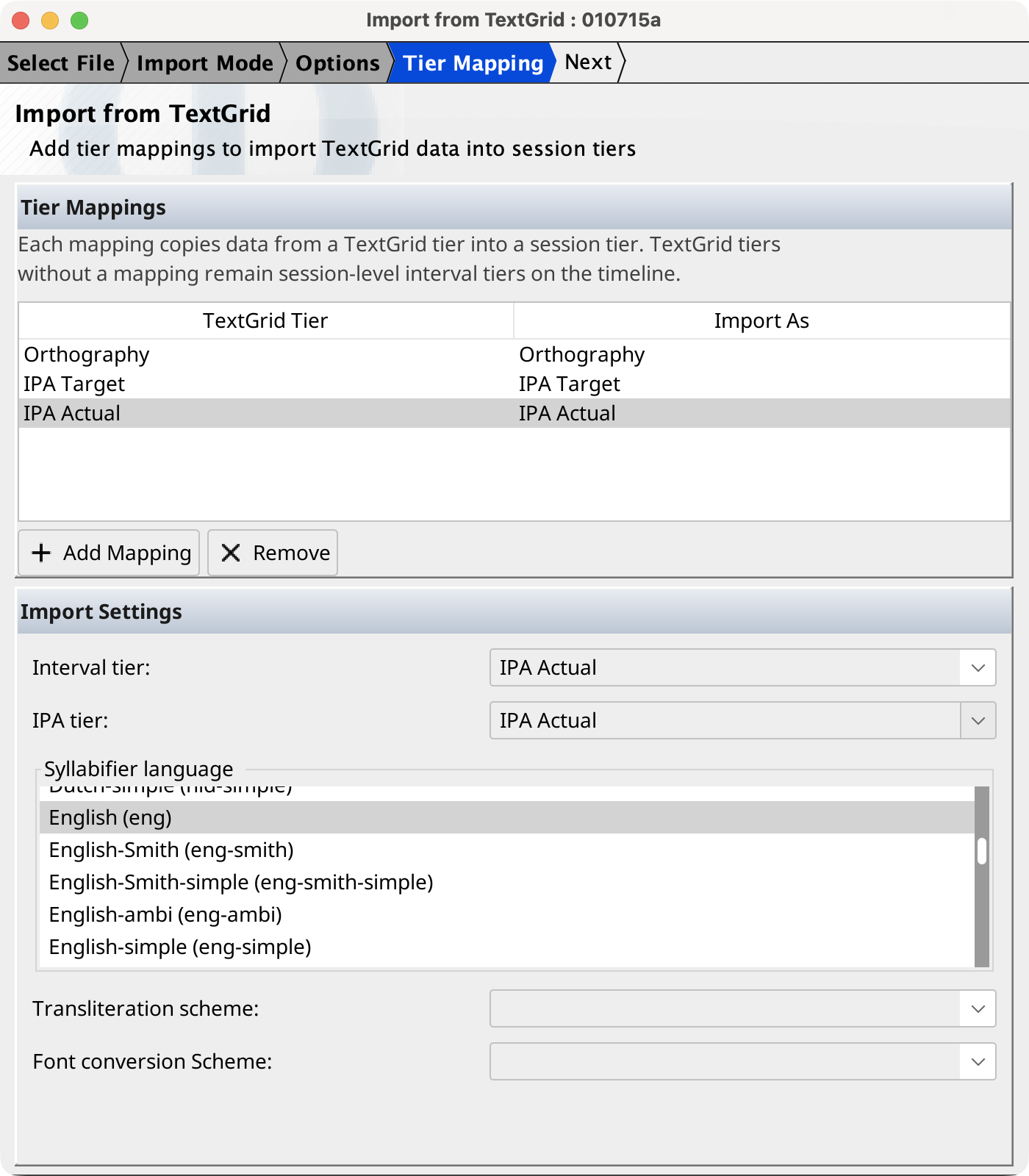
Step 2: Tier Mapping
In this step, map each TextGrid tier (except the one used for record creation) to a Phon tier type. Tiers mapped to Session-level Interval Tier are kept as-is; all other tiers are imported into the session's standard tiers.
Tier Mapping Table
The mapping table lists all available TextGrid tiers (excluding the record tier). Click Add Mapping and select a tier from the popup menu to create a mapping.
Each tier can be mapped to one of the following:
- Session-level Interval Tier — Keep as timeline tier
- Orthography — Import as word intervals
- IPA Target — Import as IPA target tier
- IPA Actual — Import as IPA actual tier
- Phone Intervals — Import as phone-aligned intervals
- User Tier — Import as a custom tier (you specify the name)
- Do Not Import — Skip this tier
Only one tier can be mapped to each built-in tier type (Orthography, IPA Target, IPA Actual, Phone Intervals). Multiple tiers can be mapped to User Tier with different names.
Mapping Actions
- Add Mapping — Opens a popup menu to select a tier and target type
- Remove — Removes the selected mapping
User Tier Name
When mapping to User Tier, you can specify a custom name for the tier. If left blank, the TextGrid tier name is used.
Validation
The wizard validates mappings to prevent:
- Multiple tiers mapped to the same built-in tier type
- Empty tier names for User Tier imports
If a tier is not mapped to a built-in type or is mapped to User Tier with no name, it will be skipped during import.
Step 3: Tier Settings
In this step, configure settings for each mapped tier. The wizard displays a settings panel for each tier mapping, allowing you to customize import options.
Settings Panels
Each tier mapping has its own settings card. The wizard reuses existing settings panels for each tier type:
- Orthography
- Word interval settings — configure whether to import word intervals and the terminator character.
- IPA Target / Actual
- IPA import settings — configure language, transliteration scheme, and font conversion.
- Phone Intervals
- Phone alignment import settings — configure transliteration scheme and font conversion.
- User Tier
- User tier import settings — configure whether to include interval text.
- Session-level Interval Tier
- Information panel explaining that the tier will be kept as a session-level interval tier.
Click in the left list and select a tier mapping to view/edit its settings. Navigate between mappings using the left list or by clicking each tier name.
Save Settings
The wizard automatically saves your import settings to a JSON file named {filename}.import.json alongside the TextGrid file. This allows you to reuse the same settings for future imports from TextGrid files with the same structure.
Step 4: Import
In this final step, the wizard executes the import and displays progress information.
Execution
The wizard:
- Validates all settings (tier mappings and per-tier options)
- Adds all mapped tiers to the session timeline (as temporary tiers)
- Creates or updates records based on the selected import mode
- Imports each tier in the order specified in the tier mapping table
- Applies per-tier settings (language, terminator, etc.)
- Removes temporary timeline tiers if the mapping included session-level tiers
The progress log shows each import operation and its status. Any errors or warnings are displayed in the log panel.
Results
Upon completion, the wizard displays a summary dialog showing:
- Number of records created or updated
- Number of tiers imported
- Any warnings or errors encountered
The wizard automatically navigates to the first imported record. You can undo the entire import operation from the Undo menu if needed.
Workflow Examples
Example 1: Import Annotations Only
Use case: Importing pause annotations from a TextGrid file without creating new records.
- Select a TextGrid file that contains pause annotations in one tier
- Choose Import all TextGrid tiers as session-level interval tiers
- In Step 2, map the pause tier to Session-level Interval Tier
- In Step 3, keep default settings
- Complete the import
Result: The pause intervals appear as a session-level interval tier. Existing records are unchanged.
Example 2: Import Complete Transcription
Use case: Importing a complete transcription (orthography, IPA, phones) from a TextGrid file.
- Select a TextGrid with orthography and IPA tiers
- Choose Create records from TextGrid
- Select the orthography tier as the record tier (it defines utterance boundaries)
- In Step 2, map:
- Orthography tier → Session-level Interval Tier
- IPA tier → IPA Actual
- In Step 3, configure IPA settings (language, etc.)
- Complete the import
Result: New records are created with orthography word intervals and IPA Actual intervals.
Example 3: Update Existing Session
Use case: Adding phone alignment to an existing session's records.
- Select a TextGrid with phone alignment tier
- Choose Update existing records from TextGrid
- Select any tier as record tier (it will only define boundaries, not create records)
- In Step 2, map the phone tier to Phone Intervals
- In Step 3, configure phone import settings
- Complete the import
Result: Phone intervals are added to existing records. No new records are created.
Tips
- Round-trip testing: Export a session to CSV, then import the CSV as a TextGrid to verify data integrity.
- Range filtering: Use range filtering to import only a subset of records from a large TextGrid file.
- Save settings: Save import settings for commonly used TextGrid files and reuse them for similar files.
- Grouping intervals: Enable Group contiguous intervals to merge intervals separated by small gaps, creating more natural record boundaries.
- Session-level tiers: Use session-level interval tiers to display annotation layers (e.g., intonation contours, pause markings) alongside standard tiers.