Timeline
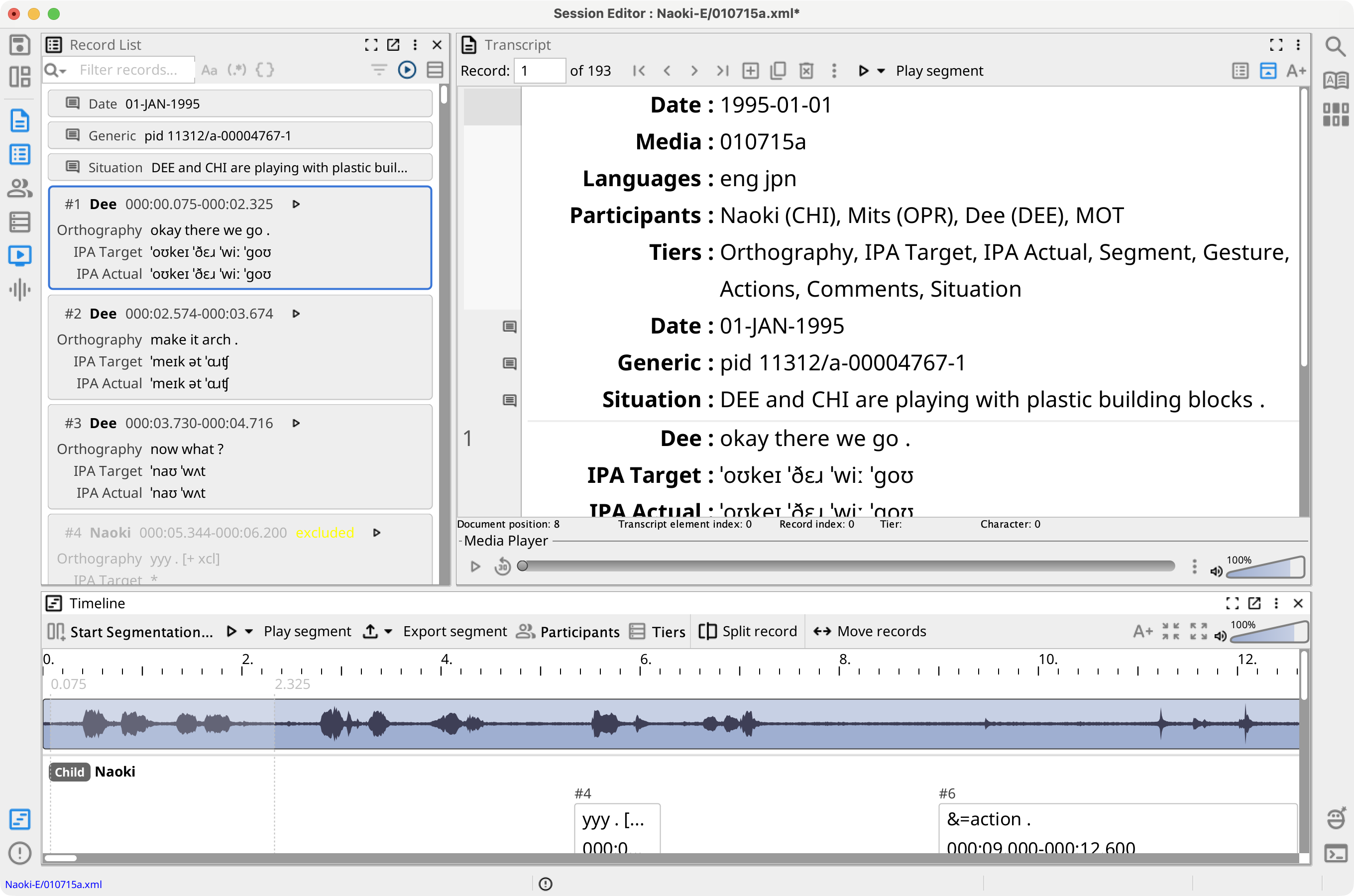
The Timeline view aligns session records and interval tiers with the session audio waveform. Select its button in the left view strip or press the platform menu shortcut plus 6. It opens below the Transcript by default.
The time ruler and waveform share a horizontal time scale. Record rows are grouped by participant and positioned by their Segment tiers; Unidentified contains records with no assigned participant.
Timeline Toolbar
- Start Segmentation... — Configure and begin keyboard segmentation. It is enabled after session media and audio are ready.
- Play and Export — Act on the current waveform selection; their menus also provide the common record, custom, speaker-turn, and adjacency-sequence ranges.
- Participants — Show or hide participant rows and add a participant.
- Tiers — Choose the record tiers displayed in cells.
- Font size — Scale the tier text in record cells.
- Zoom in and Zoom out — Change the visible time range.
Waveform Selections and Records
Drag over the waveform to select a time interval. Its context menu can play or export the selection, assign it to the current record, or create a new record for a selected participant. It can also hide the waveform, switch between mixed-mono and separate stereo channels, and adjust spike suppression.
Select a record cell to make it the current Session Editor record. Record context commands can copy, cut, paste, delete, change participant, or select multiple records. Selected records can be moved by an entered duration, nudged left or right, grown, shrunk, or distributed over time.
Split record previews two records at a movable split marker. Press Enter to accept the split or Escape to cancel it. The accepted split shortens the original record's Segment and inserts a new record with the same participant for the remaining time; the new record's transcription tiers are empty.
Keyboard Segmentation
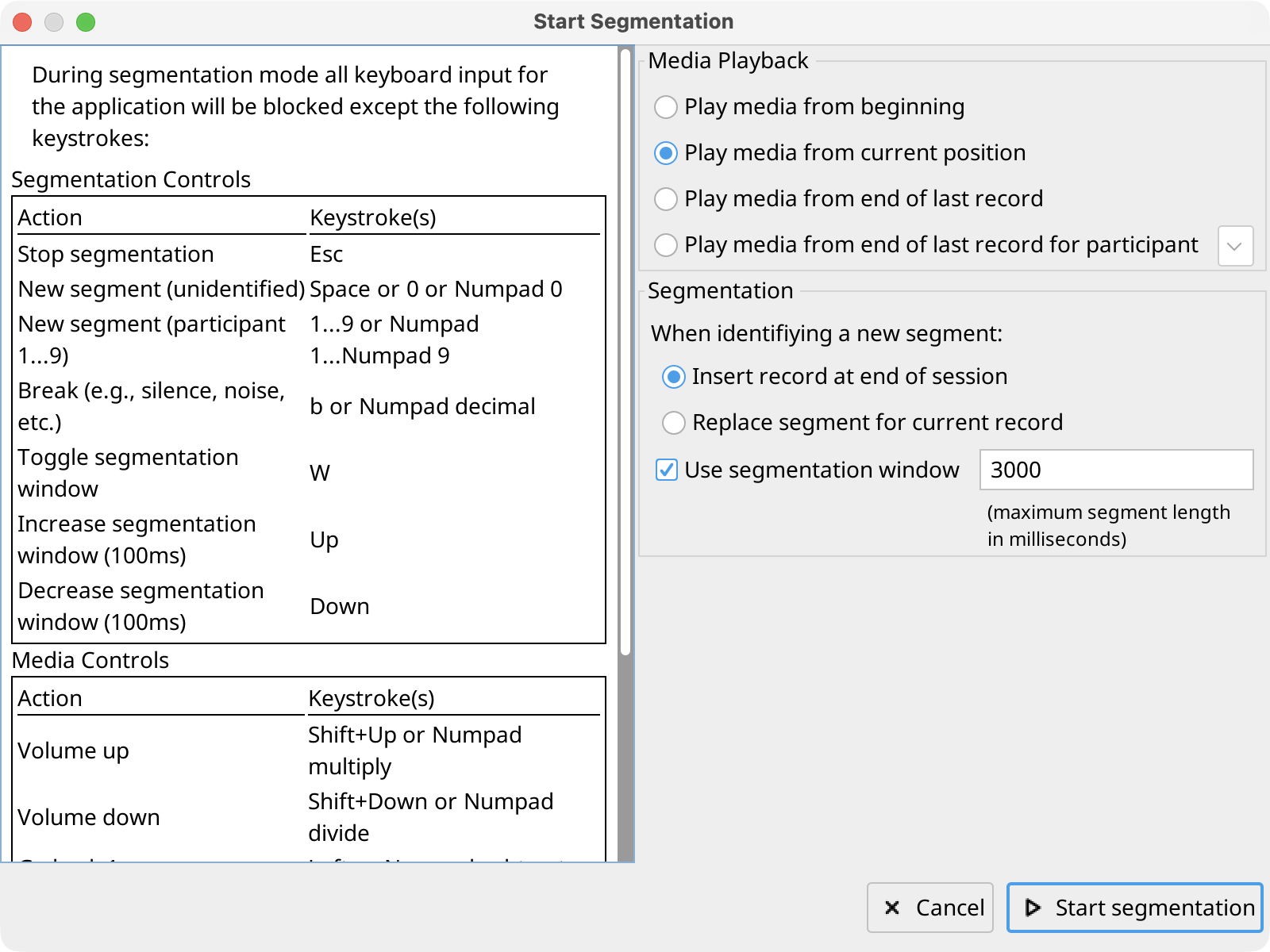
Select Start Segmentation..., then choose whether new boundaries insert records at the end or replace the current record's Segment. Playback can start at the beginning, current position, end of the last record, or end of the last record for a selected participant.
An optional segmentation window creates a fixed-length interval around each marked position. Without a window, each new mark closes the preceding interval. Phon saves the selected options for the next segmentation run.
During segmentation, other application keystrokes are blocked. Use:
- Space or 0 — Mark a segment for Unidentified.
- 1 through 9 — Mark a segment for the corresponding participant.
- B — Mark a break such as silence or noise.
- W — Toggle the segmentation window; Up Arrow and Down Arrow change its length by 100 ms.
- Left Arrow and Right Arrow — Move playback by one second; add Shift to move by five seconds.
- Shift+Up and Shift+Down — Adjust volume; Period/Page Up and Comma/Page Down adjust playback rate.
- Escape — Stop segmentation.