
Transcript View
The Transcript view is the central Session Editor work area. It displays editable session headers followed by transcript records, comments, and gems. Other views dock around it.
Select the Transcript button in the left view strip, or press the platform menu shortcut plus 1, to focus the view.
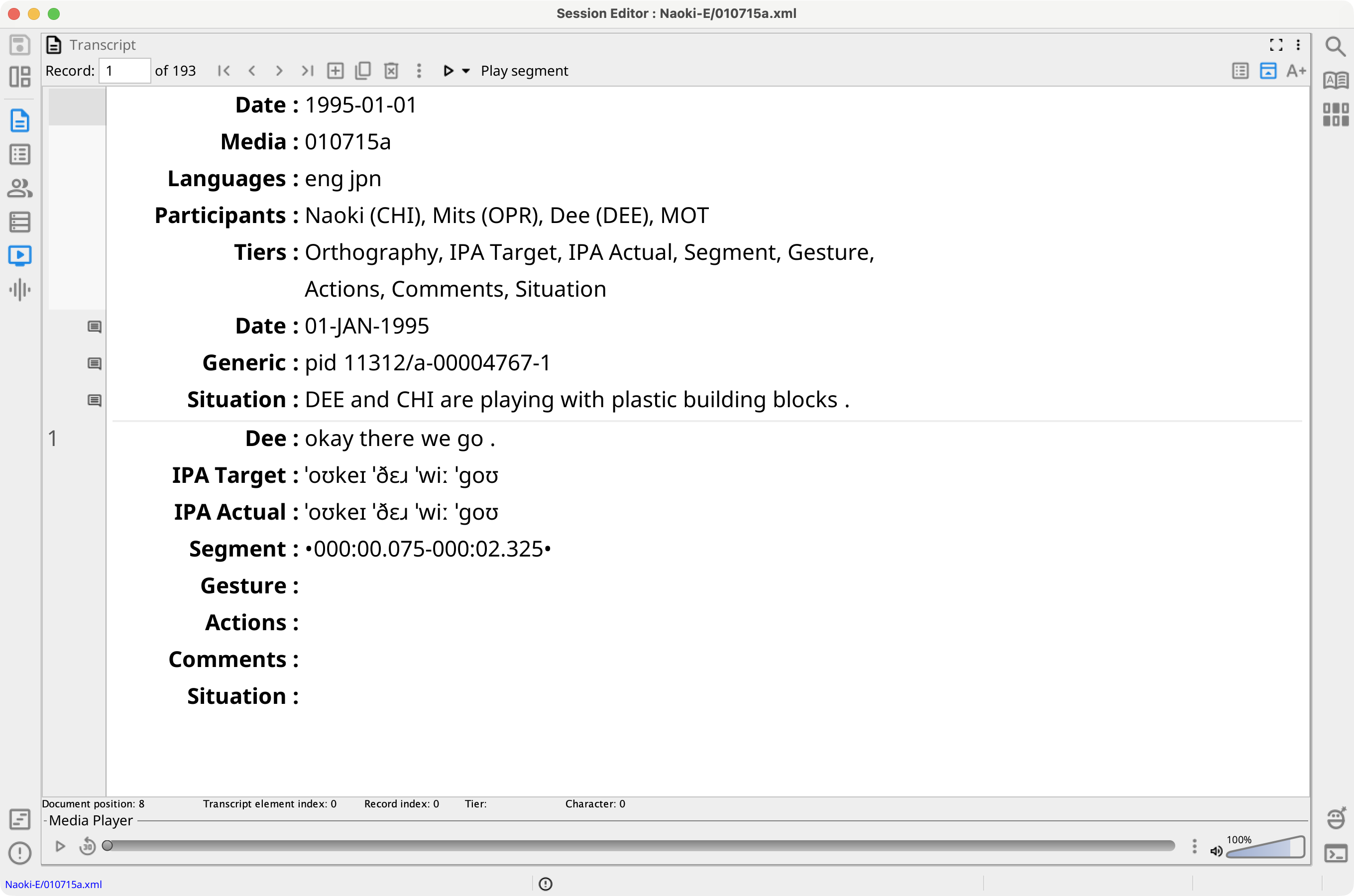
Transcript Toolbar
The toolbar above the transcript provides:
- Record — Shows the current record and total number of records. Enter a record number to navigate directly to it. The adjacent buttons go to the first, previous, next, or last record.
- New record — Insert a record after the current record.
- Duplicate record — Insert a copy after the current record.
- Delete record — Remove the current record. By default, Phon asks for confirmation first.
- Transcript menu — Open menus for participants, tiers, records, comments, and gems, and open the session metadata dialog.
- Play segment — Play or stop the media segment associated with the current record. Its menu includes other playback ranges.
- Show all records — Switch between the continuous all-records display and the single-record display.
- Show/hide header tiers — Show or hide the session-level headers.
- Font scale — Adjust the transcript font size or select Use default font size.
Session Header Tiers
Header tiers appear before the first transcript element. Values can be edited in place. Press Enter or move the caret out of a header to apply a typed Date, Media, or Languages value.
- Date — Enter a date directly, or select the Date label and choose Edit to use the calendar. The same menu can remove the date.
- Media — Enter a media reference directly, or select the Media label and choose Browse.... A missing file is underlined as invalid. Select Remove media to clear the assignment.
- Languages — Enter ISO-639 language codes directly, or select the label to add a language from the lookup table, remove a language, or select Detect from session. Detection uses language information from participants and, when needed, record language markers.
- Participants — Select the label to add, edit, or remove session participants. See Participants.
- Tiers — Lists the tiers currently shown in the transcript. Select the label to manage tier visibility, order, locking, and related tier actions. See Tier Management.
Select View metadata from the Transcript menu to inspect the session's metadata properties.
Edit Tier Data
Select a tier value and type to edit it. Tier labels are not editable. Changes are parsed according to the tier type; invalid values remain visibly marked until they are corrected.
For IPA Target and IPA Actual, enter characters from the keyboard or the IPA Map. The Segment tier stores the record's media interval; use the Timeline for visual segmentation.
Use the Transcript menu to insert records, comments, or gems above or below the current transcript element. The same menu manages participants and tiers.
Default Keyboard Shortcuts
The following defaults use the platform menu shortcut key. They can be changed in Preferences > Shortcuts.
- Menu+S — Save the session.
- Menu+[ and Menu+] — Go to the previous or next record.
- Menu+N, Menu+D, and Menu+Delete — Create, duplicate, or delete a record.
- Menu+F and Menu+R — Show Find or Find and Replace. See Find and Replace in the Transcript.
- Menu+Y — Play the current record segment.
- Menu+= and Menu+- — Increase or decrease the transcript font size.
- Control+Space — Play or pause the current segment while the transcript editor has focus.